Plugins
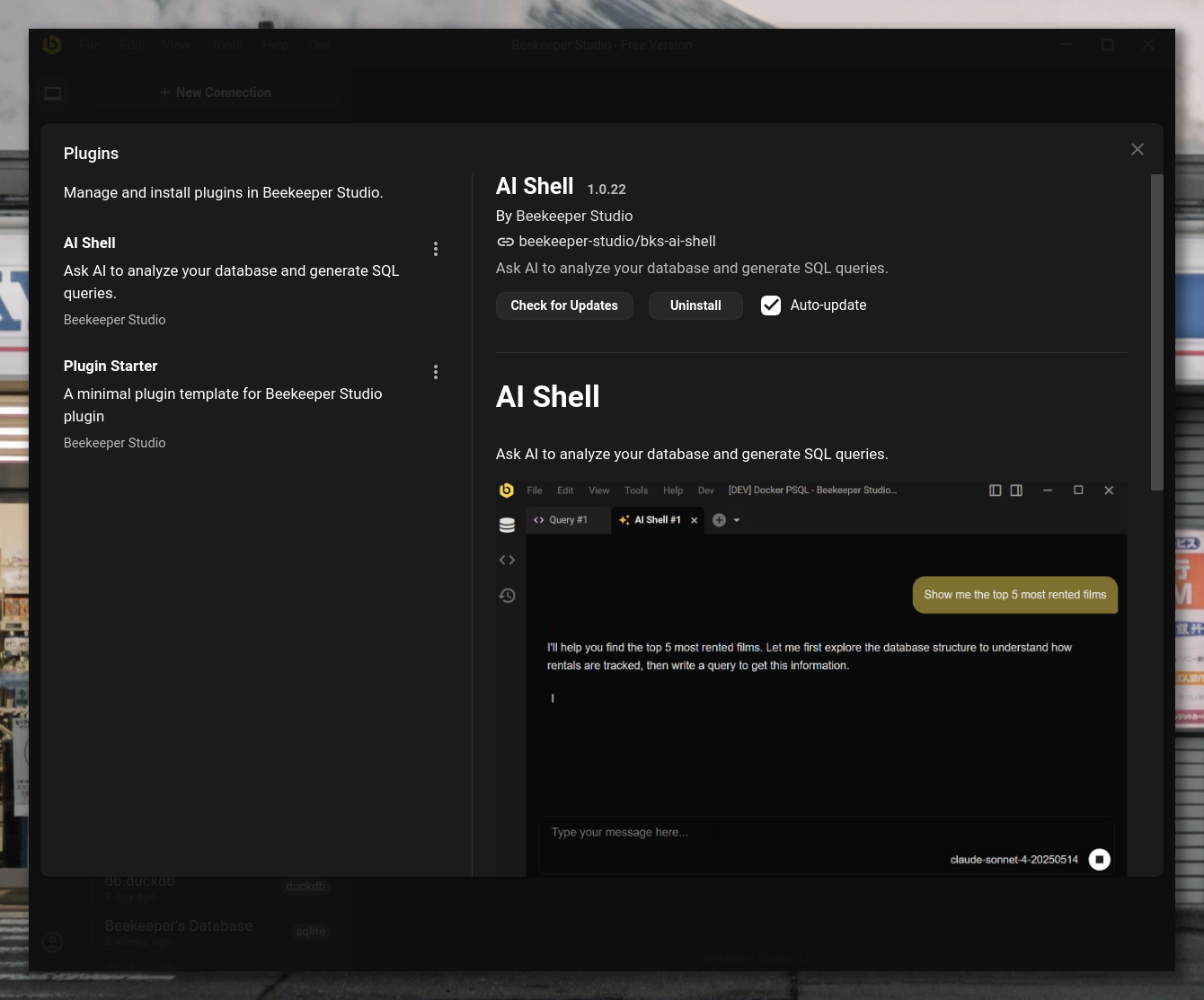
Plugins extend Beekeeper Studio with additional functionality, bringing new tools and capabilities directly into your database workflow. Think of them as specialized add-ons that enhance what you can do with your data.
What are Plugins?
Plugins are mini-applications that run inside Beekeeper Studio to provide specialized functionality. They appear as new tabs or sidebar panels, integrating seamlessly with the rest of the interface.
Each plugin operates in its own secure environment while having access to your database connections and query capabilities through a controlled interface.
Who Can Use Plugins?
Plugins are available to all Beekeeper Studio users, including those using the free Community Edition.
However, some individual plugins may have their own access requirements. For example, premium plugins developed by the Beekeeper Studio team may require a paid subscription.
Available Plugins
AI Shell
Requires Paid Subscription
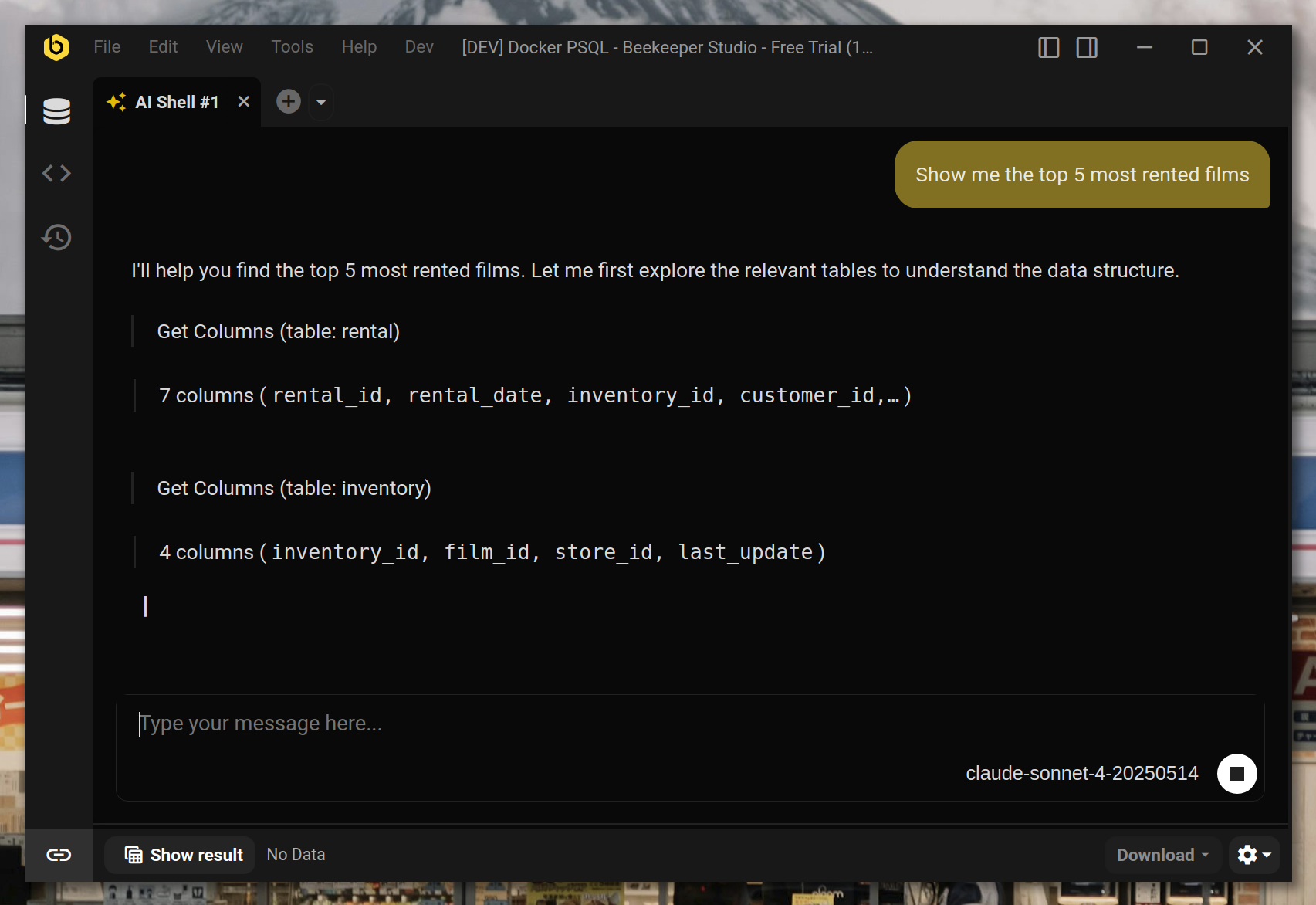
The AI Shell plugin brings artificial intelligence directly into your database workflow. Ask questions about your data in plain English and get intelligent responses powered by AI.
The AI Shell appears as a new tab type that you can open alongside your regular query tabs, with a built-in result viewer for any queries it runs.
Installing Plugins
- Go to Tools > Manage Plugins
- Find the plugin you want to install
- Click Install
Updating Plugins
Beekeeper Studio automatically checks for plugin updates everytime you start the application. When updates are available, Beekeeper Studio will automatically download and install them. Or you can disable this behaviour by:
- Go to Tools > Manage Plugins
- Find the plugin
- Uncheck Auto-update
Uninstalling Plugins
- Go to Tools > Manage Plugins
- Find the plugin
- Click Uninstall
Installing a Specific Plugin Version
Sometimes you might need a specific plugin version - maybe the latest plugin requires a newer Beekeeper Studio version than you have, you can't update the app for some reason, or you need to downgrade to an older plugin version. Here's how to manually install any plugin version:
-
Disable auto-update first
- Go to Tools > Manage Plugins
- Find the plugin you want to install a specific version of
- Uncheck Auto-update (this prevents Beekeeper Studio from updating it back to the latest version)
-
Find the plugin in Plugin Manager
- Go to Tools > Manage Plugins
- Find your plugin and click the GitHub link
-
Navigate to releases
- Go to the Releases page on GitHub
- Browse available versions
-
Check version compatibility
- Click on a release to see its assets
- Look for
manifest.jsonin the release notes or assets - Check the
minAppVersionfield to ensure compatibility with your Beekeeper Studio version - Note the plugin
idfrom the manifest
-
Download the plugin
- Download the ZIP file (e.g.,
bks-ai-shell-1.2.0.zip, not the source code archive)
- Download the ZIP file (e.g.,
-
Install manually
-
Navigate to your plugins directory:
~/.config/beekeeper-studio/plugins/~/Library/Application Support/beekeeper-studio/plugins/%APPDATA%\beekeeper-studio\plugins\/path/to/beekeeper-studio/beekeeper-studio-data/plugins/ -
Find the existing plugin folder and delete it
- Create a new folder with the same plugin ID
- Extract the downloaded ZIP file contents into this new folder
-
-
Restart Beekeeper Studio
The specific plugin version should now be installed and ready to use.
Disabling Plugins
Plugins can be disabled in a variety of ways. By default, all registries are disabled (Official, Commmunity, Custom, and Unlisted). Disabling a registry means that all loading processes for that registry are skipped, and any plugins from that registry that are already installed are automatically disabled. There are controls in the browse section of the plugin modal to control these values, but they can also be manually set in the ini config. This is an excerpt from the default configuration:
[pluginSystem]
; Disable plugin system entirely
disabled = false

; Disabled all official plugin functionality (installing, fetching the plugin list from
; the registry, and load). These plugins can be found at https://github.com/beekeeper-studio/
; beekeeper-studio-plugins/blob/main/plugins.json
officialDisabled = true

; Disable all community plugin functionality (installing, fetching the plugin list from the
; registry, and loading). These plugins can be found at https://github.com/beekeeper-studio/
; beekeeper-studio-plugins/blob/main/community-plugins.json
communityDisabled = true

; Disable third party registries, these are configured below via the [pluginSystem.registries] sections
thirdPartyRegistriesDisabled = true

; Disable unlisted plugin loading, these are plugins that are manually added to the
; plugin directory
unlistedDisabled = true
You can also explicitly disable a specific plugin by its id. In the ini config file:
; The plugin id can be found in the plugin's manifest.json, found in its repo or in the registry
[plugin.plugin-id]
disabled = true
Custom Registries
For Business users, custom registries allow you to distribute as many plugins as you'd like to your team. Once set up, any plugins in your registry will show up in the plugin browse section. Here's how you can set up a custom registry:
-
Create your registry
- Create a GitHub repository. Visibility doesn't matter, if you want a private registry we can configure a GitHub token later.
- Add a JSON file, name it what you want, we'll call it
plugins.json - Add your plugins to that file, you can check out the format from our community registry here. Each plugin needs an
id,name,author,description, andrepo.
-
Add the registry to the app
- In your config add a section for your registry
; Replace custom-name with the name of your repo, this is only used internally and must be unique
[pluginSystem.registries.custom-name]
; The owner of the github repo
owner = owner-name
; The repository name
repo = repository-name
; The name of the file you created above
file = plugins.json
Tip
For fleet deployments, use the
system.config.inito configure this for every machine. User configs are overriden by those settings. - In your config add a section for your registry
-
Enable custom registries
- In your config, make sure
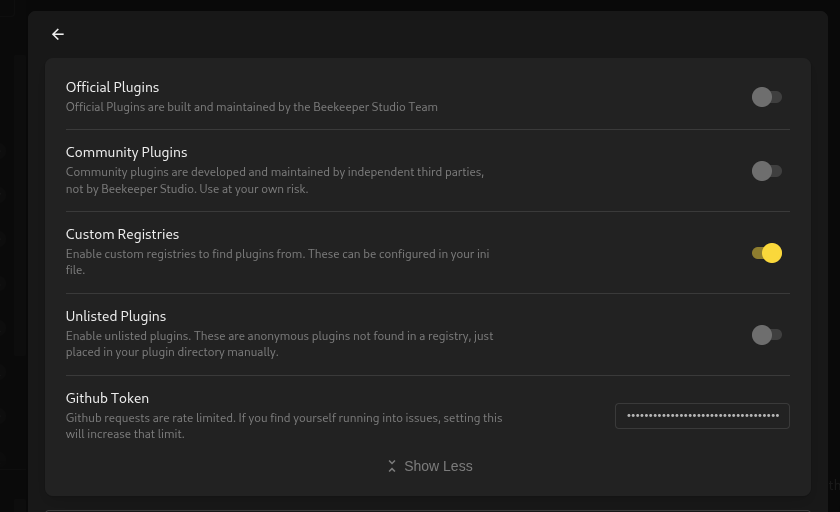
pluginSystem.thirdPartyRegistriesDisabledisfalse. - You can also enable this by toggling custom registries in the plugin browse section, you may have to expand the settings at the top.
- If your registry is in a private repo, ensure you've added a GitHub token with the correct access. This also increases your rate-limit with GitHub, so if you've been having issues with that, configuring this might help
- In your config, make sure
-
Install your plugins
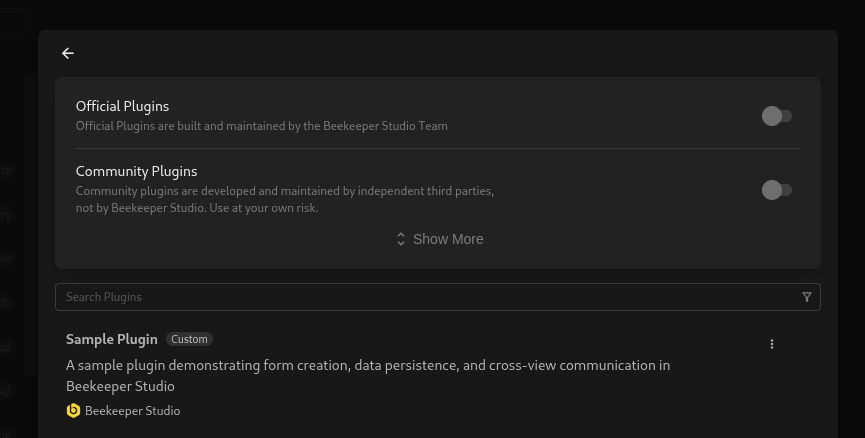
- You can now install plugins from your own registry! These will be marked as
Customin the install UI.
- You can now install plugins from your own registry! These will be marked as
Feature Requests
Have ideas for new plugins or features? We'd love to hear from you:
- Email us through the support channels
- Join our community discussions
- Submit feature requests on our GitHub repository
Tip
Interested in developing your own plugins? Check out our Plugin Development documentation to get started!