SQL Editor
Writing SQL is such a fundamental part of interacting with a relational database that we put this functionality front and center.
You can use the SQL query tab to write, and run, SQL queries quickly and easily.
Code completion
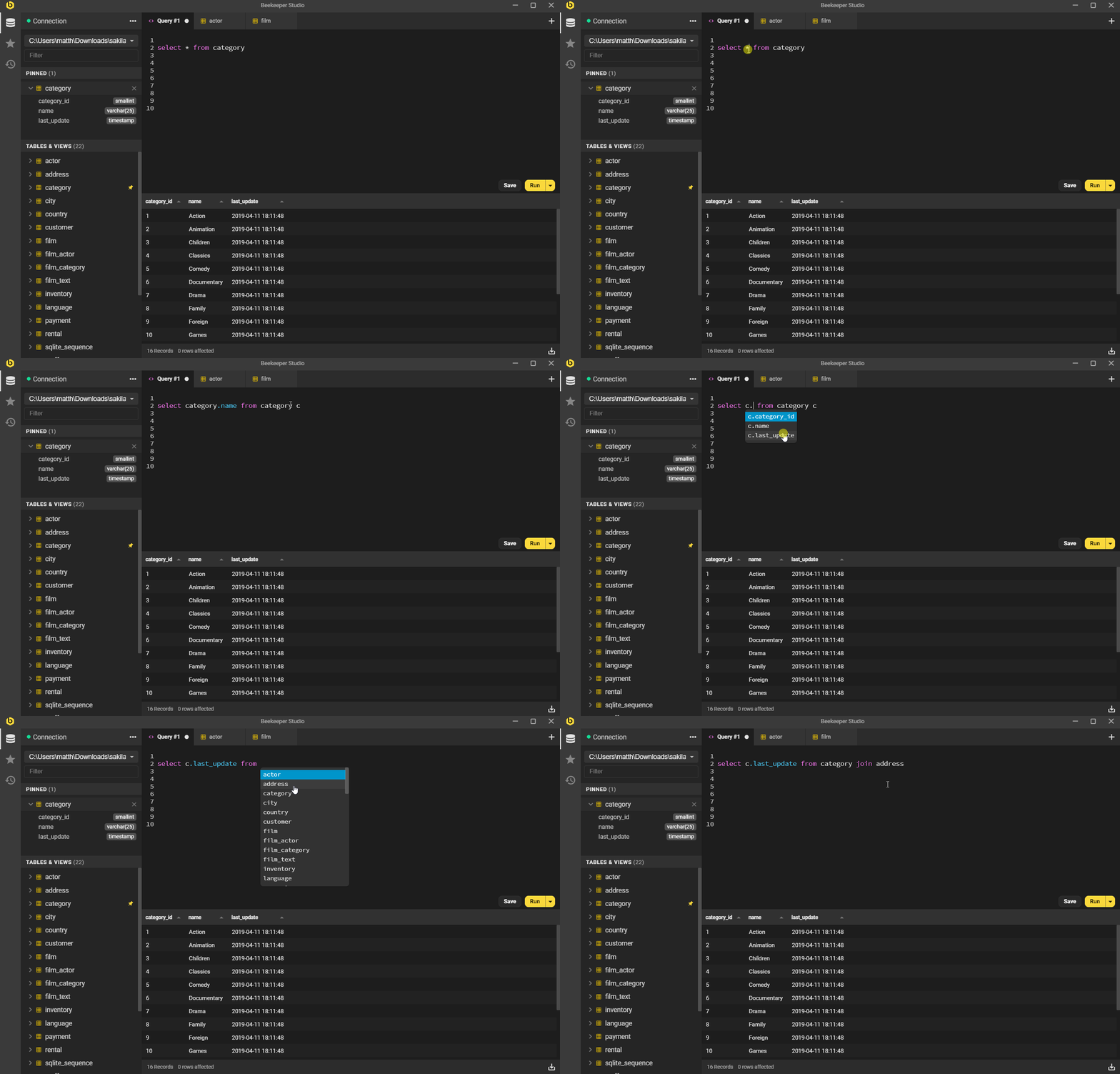
We have tried to make our code completion useful but not intrusive.
Code suggestions will automatically appear in the following situations:
tableswill be suggested after typingfromorjoincolumnswill be suggested after typing a tablename, or table alias, followed by a period, egfilm.
In these situations, Beekeeper will automatically resolve the correct table and column names for the entity you are querying.
Manually triggering autocomplete
The default key combo to manually trigger autocomplete is Ctrl+Space.
Identifier quoting
- Beekeeper Studio will automatically add
"quotes"to identifiers when it thinks they are required, eg"MixedCaseTableName"in PostgreSQL. - Beekeeper Studio will pick the quote character
",`, or[, depending on engine conventions.
Some specific examples:
- PostgreSQL mixed-case identifiers will be quoted, for example
"MyTable". - MySQL mixed-case identifiers will not be quoted (they work fine).
- SQL Server defaults to using
[brackets]for quotes. - MySQL & MariaDB defaults to
`backticks`for quotes.
You can 'always quote', or change your preferred quote character using the autocomplete configuration.
Keyword case selection
Do you prefer SELECT, or select? By default Beekeeper Studio will match the case you use when typing, so if you type SE, it will autocomplete SELECT for example.
Configure this behavior using the autocomplete configuration
Configuring autocomplete
You can adjust autocomplete behaviors with the config file. These are the defaults:
[ui.queryEditor.autocomplete]
; Casing of completed keywords and built-in functions.
; preserve = follow the typed prefix: SEL -> SELECT, sel -> select;
;            completing with no prefix (e.g. Ctrl+Space) inserts uppercase
; upper    = always uppercase
; lower    = always lowercase
keywordCasing = preserve
; When completed table/column names get quoted.
; auto   = only names the database can't reference unquoted: special
;          characters always; MixedCase only where unquoted names are
;          case-folded (e.g. PostgreSQL)
; always = quote every completed name
quoteIdentifiers = auto

; Disable completion of SQL keywords
disableKeywordCompletion = false

; Disable completion of identifiers from your database (tables, columns, etc)
disableSchemaCompletion = false
The quote character itself can be changed per database with autocompleteQuoteCharacter — useful if, say, your team prefers ANSI double quotes over brackets in SQL Server:
[db.sqlserver]
autocompleteQuoteCharacter = "
A value of 0 (the shipped default) selects the database's convention. Only characters the database accepts as identifier quotes are honored (SQL Server accepts [ or ", SQLite accepts " or a backtick) — anything else falls back to the convention, so autocomplete never writes a name your database can't parse.
Run Contexts
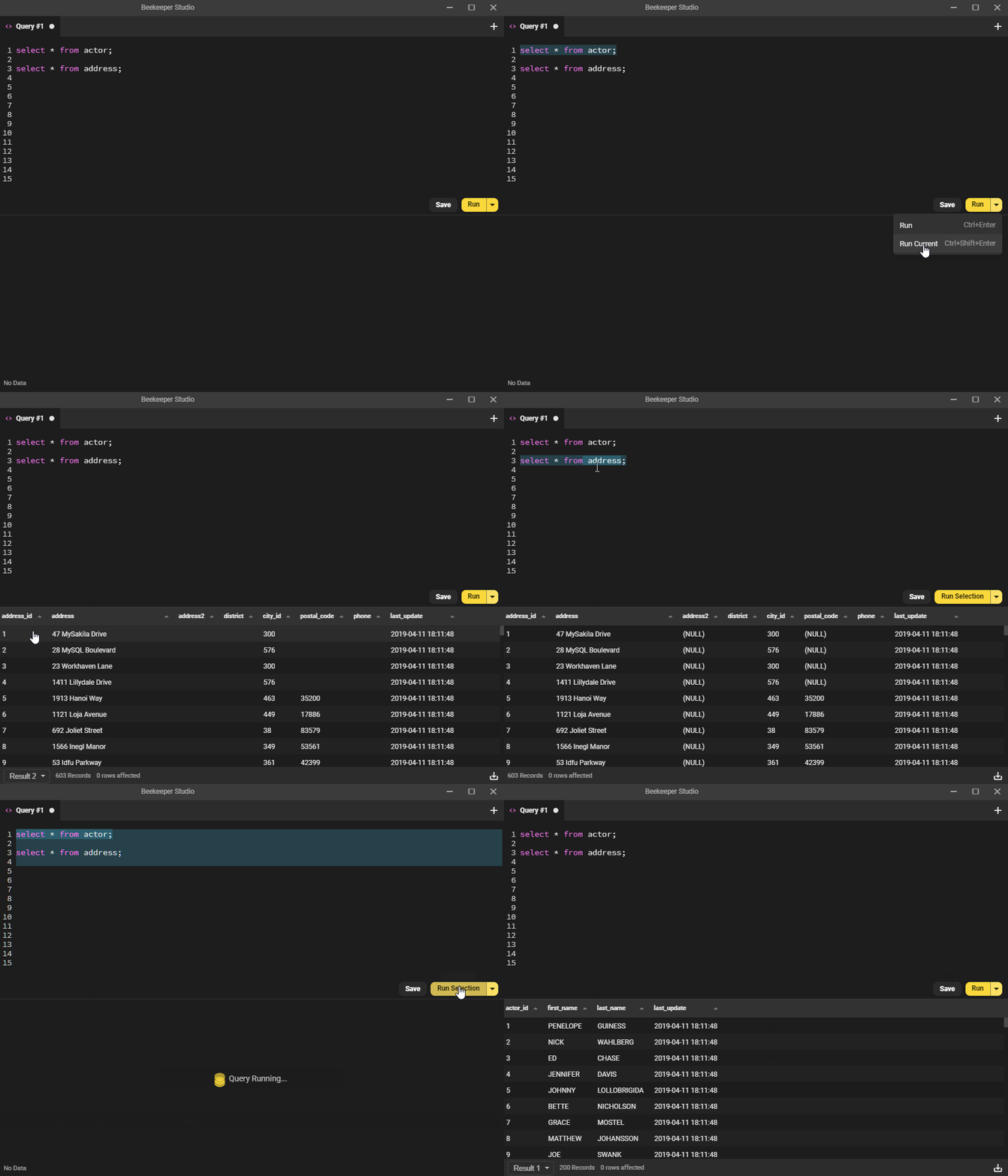
If you like writing big long SQL scripts with multiple queries in the same editor pane (I know I do), you might want to only run a portion of your script at a time.
Beekeeper allows you to:
- Run everything (this is the default)
- Run only the 'current' query (Beekeeper highlights this query for you so you know what will run)
- Run only what you have selected.
Transaction Management
Transactions run within the query editor will be automatically detected by Beekeeper, which will then reserve a connection for your current query tab until that transaction is committed or rolled back.
There is also a Manual Transaction Mode that allows you to manually handle every step of this process.
This functionality is currently only available for Postgres, CockroachDB, Redshift, MySQL, MariaDB, SQLServer, Firebird, and Oracle.
Editing Query Results
After running your queries, you may want to make some quick changes to the data that you have selected. This can be done directly in the result table as long as the necessary data to generate an update query is present. Just hit Edit Data in the bottom right and go nuts! Learn more about this feature here
Query Parameters
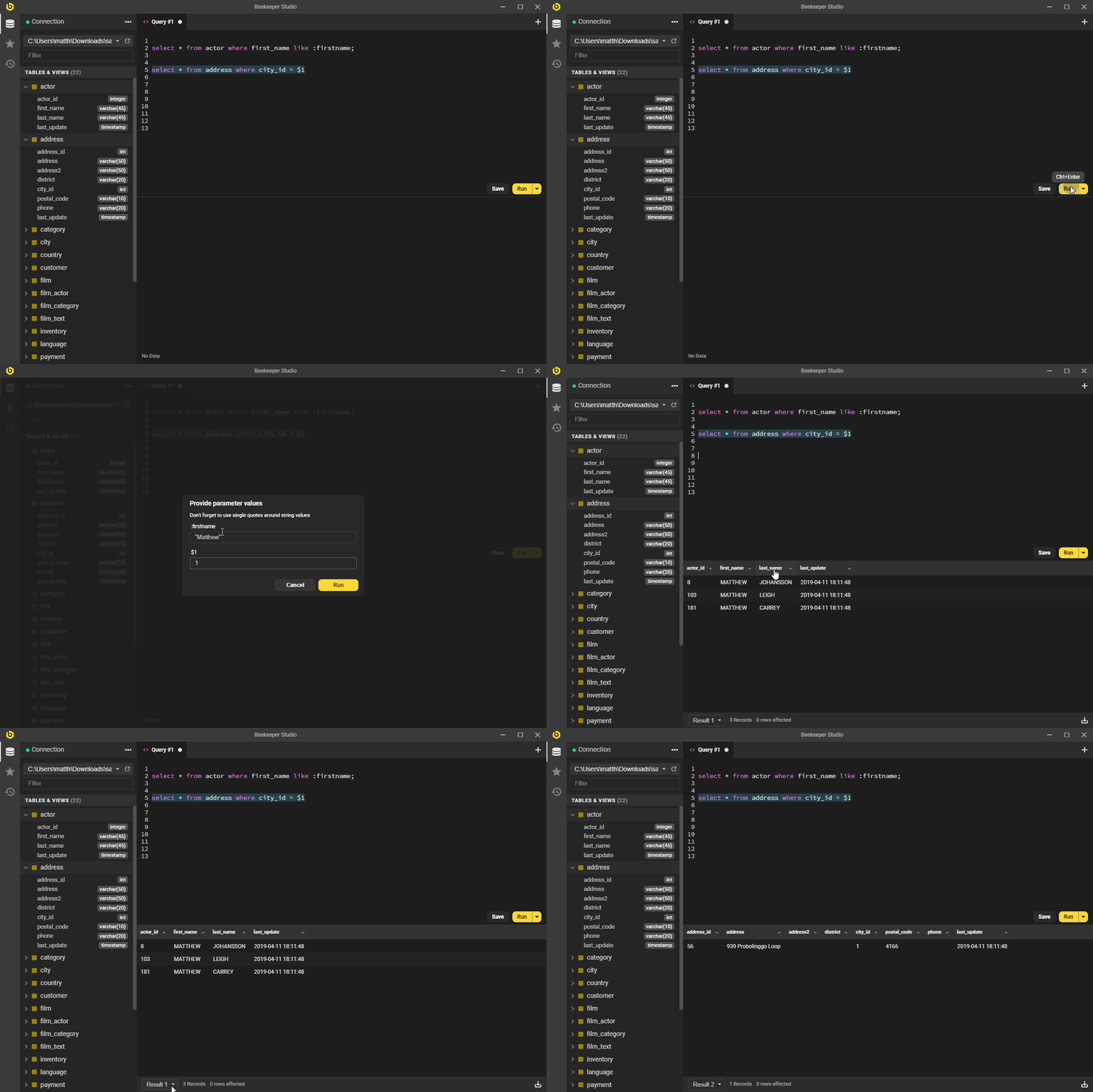
You can parameterize your queries and Beekeeper will prompt you for values when you run it.
You can use three types of syntax :variable, $1, or ? depending on the database engine you are querying.
select * from table where foo = :one and bar = :two

select * from table where foo = $1 and bar = $2
You can configure which syntax is active for your database engine using the config file.
; Enable all parameter types for postgres (not recommended)
[db.postgres.paramTypes]
positional = true
named[] = ':'
named[] = '@'
named[] = '$'
numbered[] = '?'
numbered[] = ':'
numbered[] = '$'
quoted[] = ':'
quoted[] = '@'
quoted[] = '$'
Downloading Results
When you run a query, the results will appear right underneath the SQL editor, simple!
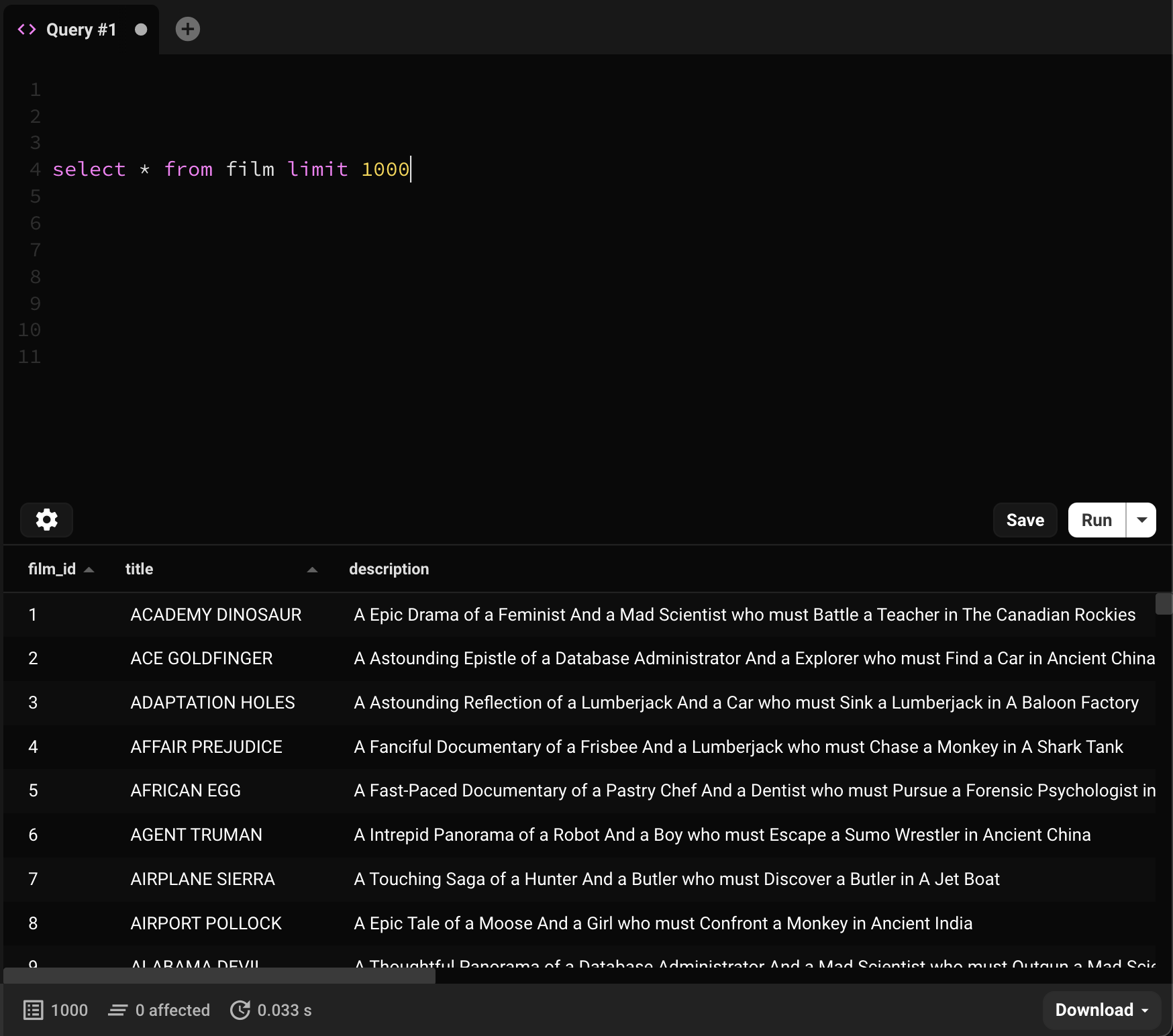
If you run multiple SQL queries, you can select different result sets with the dropdown on the status bar. You'll get a little popup to tell you about it the first time you do it.
Large Resultsets
If you run a query that generates a result set of more than 50,000 records Beekeeper will truncate the result table (to conserve memory).
In the commercial edition of Beekeeper Studio, you can also select Run To File, this will run your SQL query and send the full results directly to a CSV file.
Keyboard Shortcuts
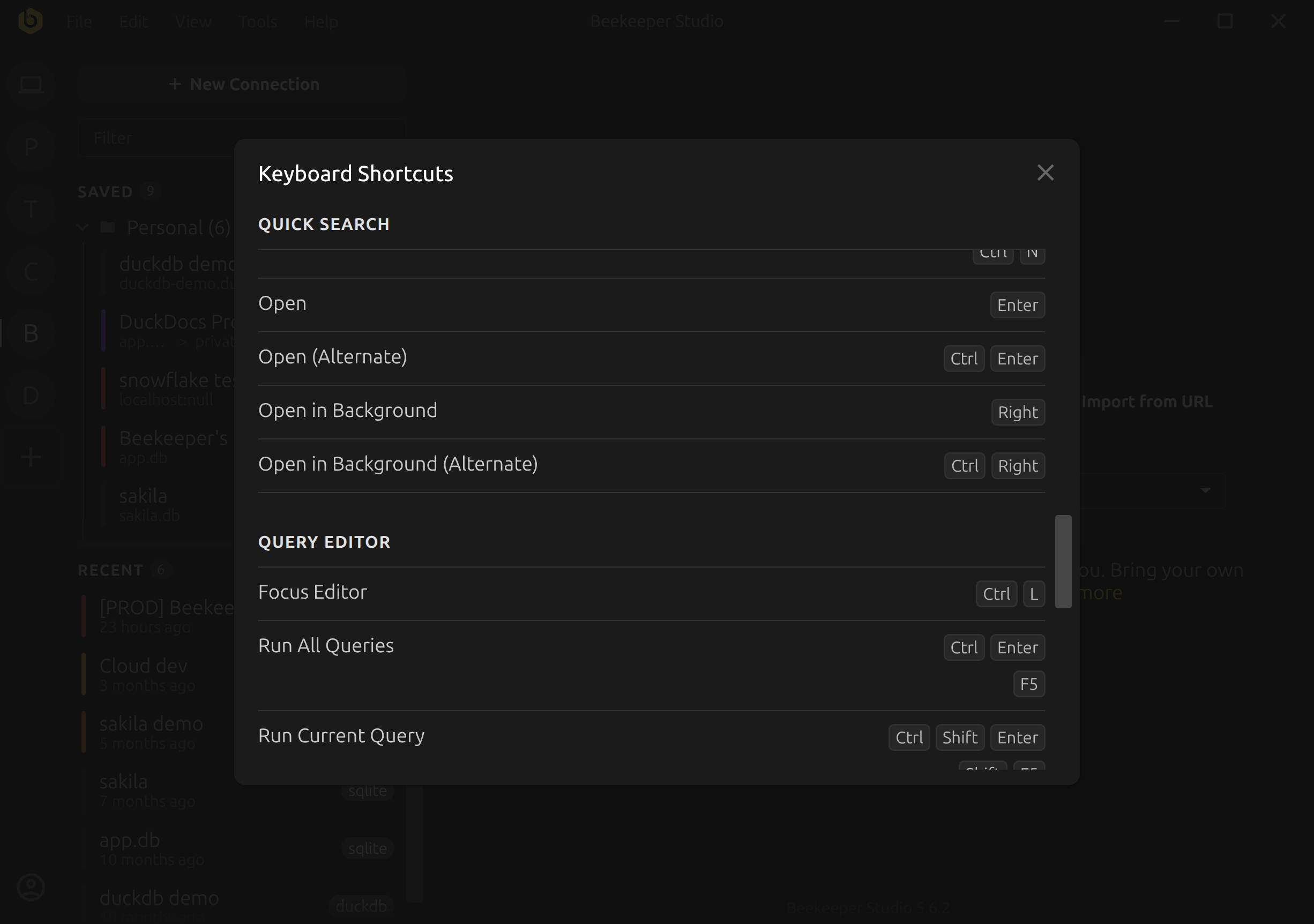
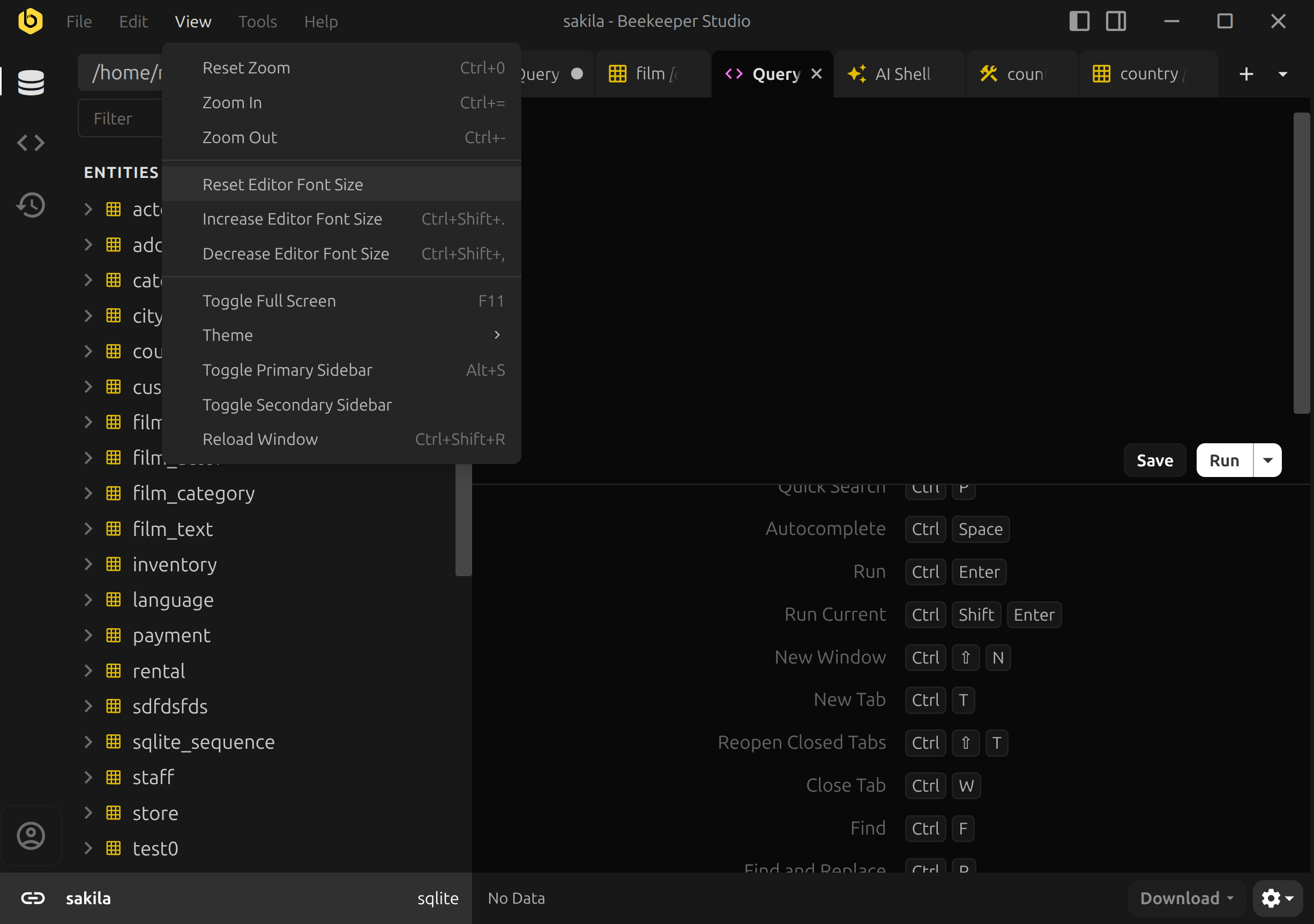
Beekeeper Studio has a built-in keyboard shortcuts reference. Open it from the Help menu to see all available shortcuts organized by category.
Editor Font Size
You can adjust the font size of the SQL editor from the View menu:
- Increase Editor Font Size -
Ctrl+Shift+. - Decrease Editor Font Size -
Ctrl+Shift+, - Reset Editor Font Size - restores the default size
Query History
Beekeeper Studio keeps a history of queries you have run. You can access your query history by clicking the history icon in the query editor toolbar.
Query history is scoped per connection, so you will only see queries that were run against the current database connection. This makes it easy to find and re-run previous queries without sifting through history from other databases.
Vim Mode
Along with the default query editor, Beekeeper supports Vim mode, which allows you to write queries in a Vim-like text editor.
To enable this, you can click the cog in the bottom right corner of the query editor:
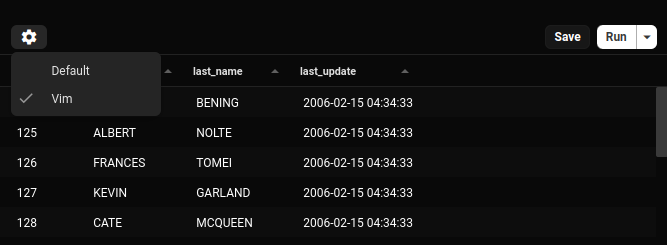
And then you're off to the races with a vim editor in Beekeeper!
Whichever editor you prefer will be preserved across all connections/restarts/etc.
The status line
In vim mode the editor shows a status line along the bottom with the current
mode, any keys waiting on the rest of a command, and the count prefix. It is
also where : commands and / searches are typed.
Ex commands
| Command | Effect |
|---|---|
:w, :write |
Save the current query |
:q, :quit |
Close the current tab |
:qa |
Close every tab |
:x, :wq |
Save, then close the tab |
:tabnew [name] |
Open a new tab, optionally with a name |
These act on the tab you are typing in.
Cancelling a running query
Esc cancels a running query. In vim mode it only does that from normal mode
with nothing pending, so leaving insert or visual mode behaves as it should.
Ctrl-Esc cancels a query from any mode.
Ctrl+P
Vim binds Ctrl+P to "move up" in every mode. In Beekeeper Studio it stays on
quick search instead, since k already moves up. To take it back, add
nnoremap <C-p> k to your .beekeeper.vimrc.
Relative line numbers
set relativenumber (or set rnu) numbers each line by its distance from the
cursor, so a count like 5j can be read straight off the gutter. Put it in
your .beekeeper.vimrc to use it in every editor, or type :set rnu and
:set nornu to switch it on the fly.
| Options | Cursor line shows | Other lines show |
|---|---|---|
set relativenumber |
Its line number | Distance from the cursor |
set nonumber relativenumber |
0 |
Distance from the cursor |
:setlocal rnu applies to the current editor only. Relative numbers only show
in vim mode, and set nonumber on its own does not hide the line numbers.
Customisation
You can also add your own keybindings and motions to the vim editor by placing a .beekeeper.vimrc file in the userDirectory for Beekeeper Studio and writing out your custom mappings.
userDirectory locations:
- Windows:
%APPDATA%\beekeeper-studio - Linux:
~/.config/beekeeper-studio - MacOS:
~/Library/Application Support/beekeeper-studio
For instance, if you're a Helix user, you can add gl and gh commands like this:
nmap gl $
nmap gh ^
These commands add motions for gl to go to the end of a line, and gh to go to the beginning of a line
Lines beginning with " are comments, and blank lines are skipped. Supported
commands:
| Command | Notes |
|---|---|
map, nmap, imap, vmap |
Recursive mappings |
noremap, nnoremap, inoremap, vnoremap |
Non-recursive mappings |
unmap, nunmap, iunmap, vunmap |
Remove a mapping |
mapclear, nmapclear, imapclear, vmapclear |
Remove every custom mapping |
set |
Vim options, e.g. set ignorecase, set relativenumber, set tabstop=4 |
let mapleader |
What <leader> expands to. Defaults to \ |
Anything that cannot be parsed is reported in a notification naming the line,
and the rest of the file still applies.
Yanking to the system clipboard
The * register is connected to the system clipboard, so "*y and "*p work
as they would in vim. To make a plain y use it, the mapping has to be
non-recursive:
nnoremap y "*y
Written as nmap y "*y the y on the right expands back into the mapping
itself, without end. That case is reported as an error instead of applied.