Capabilities
A plugin's capabilities are declared in the capabilities section of its manifest:
viewsare the views your plugin provides, such as a tab.menuis the menu items and buttons that open those views, and where they appear in Beekeeper Studio.
This page lists every place a menu item can appear. Picking the item opens one of your plugin's views in a new tab, and the view can read where it was opened from with getViewContext().
Menu items are declared in the capabilities.menu array:
{
  "capabilities": {
    "views": [
      { "id": "overview", "name": "Table Overview", "type": "base-tab", "entry": "index.html" }
    ],
    "menu": [
      {
        "command": "profile-table",
        "name": "Profile Table",
        "view": "overview",
        "placement": ["entity.table.context", "tab.table.header.context"],
        "icon": "query_stats"
      }
    ]
  }
}
commandidentifies the item. It must be unique within a placement.nameis the label users see.viewis the id of the view to open.placementis where the item appears: one placement, or an array of them to show the same item in several places.iconis a Material icon name. It falls back to the manifest'sicon.
See PluginMenuItem for every field, including enabledWhen.
In context menus, items from all plugins share one Plugins section at the bottom of the menu. Plugins are sorted by name, each plugin's items keep their manifest order, and the section ends with Manage Plugins….
Beekeeper Studio 6.2
editor.query.toolbar, results.statusbar, tableTable.statusbar, tab.query.header.context and tab.table.header.context need Beekeeper Studio 6.2 or later. Earlier versions skip items with a placement they don't know. Set "minAppVersion": "6.2.0" in your manifest if your plugin depends on them.
All Menu Placements
| Placement | Where it appears | View params |
|---|---|---|
newTabDropdown |
Dropdown next to the new tab button | None |
menubar.tools |
Tools menu | None |
editor.query.context |
Query editor context menu | EditorMenuParams |
editor.query.toolbar |
Query editor toolbar, next to Run | EditorMenuParams |
results.cell.context |
Query results: cell context menu | CellMenuParams |
results.columnHeader.context |
Query results: column header context menu | ColumnMenuParams |
results.rowHeader.context |
Query results: row header context menu | RowMenuParams |
results.corner.context |
Query results: top left corner context menu | CornerMenuParams |
results.statusbar |
Query results: Visualize menu | StatusbarMenuParams |
tableTable.cell.context |
Table view: cell context menu | CellMenuParams |
tableTable.columnHeader.context |
Table view: column header context menu | ColumnMenuParams |
tableTable.rowHeader.context |
Table view: row header context menu | RowMenuParams |
tableTable.corner.context |
Table view: top left corner context menu | CornerMenuParams |
tableTable.statusbar |
Table view: Visualize menu | StatusbarMenuParams |
tab.query.header.context |
Query tab header context menu | TabMenuParams |
tab.table.header.context |
Table tab header context menu | TabMenuParams |
entity.table.context |
Sidebar: table context menu | EntityMenuParams |
entity.schema.context |
Sidebar: schema context menu | EntityMenuParams |
entity.routine.context |
Sidebar: routine context menu | EntityMenuParams |
structure.statusbar.menu |
Table structure view: actions menu | EntityMenuParams |
The view params are what getViewContext() returns in params. See Menu item params for details.
App Menus
New Tab Dropdown
newTabDropdown adds an item to the dropdown next to the + new tab button. Use it for views that don't need anything selected first.
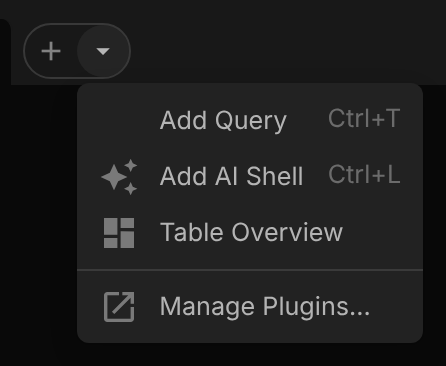
{
  "command": "table-overview",
  "name": "Table Overview",
  "view": "overview",
  "placement": "newTabDropdown",
  "icon": "dashboard"
}
Tools Menu
menubar.tools adds an item to the Tools menu in the menu bar.
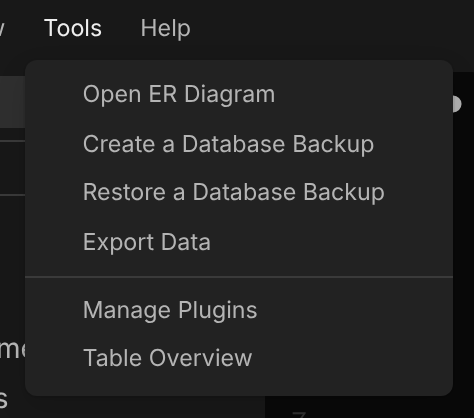
{
  "command": "table-overview",
  "name": "Table Overview",
  "view": "overview",
  "placement": "menubar.tools"
}
Query Editor
Query Editor Context Menu
editor.query.context adds an item to the context menu of the query editor. The view receives the editor's text, the selected text and the statement under the cursor.
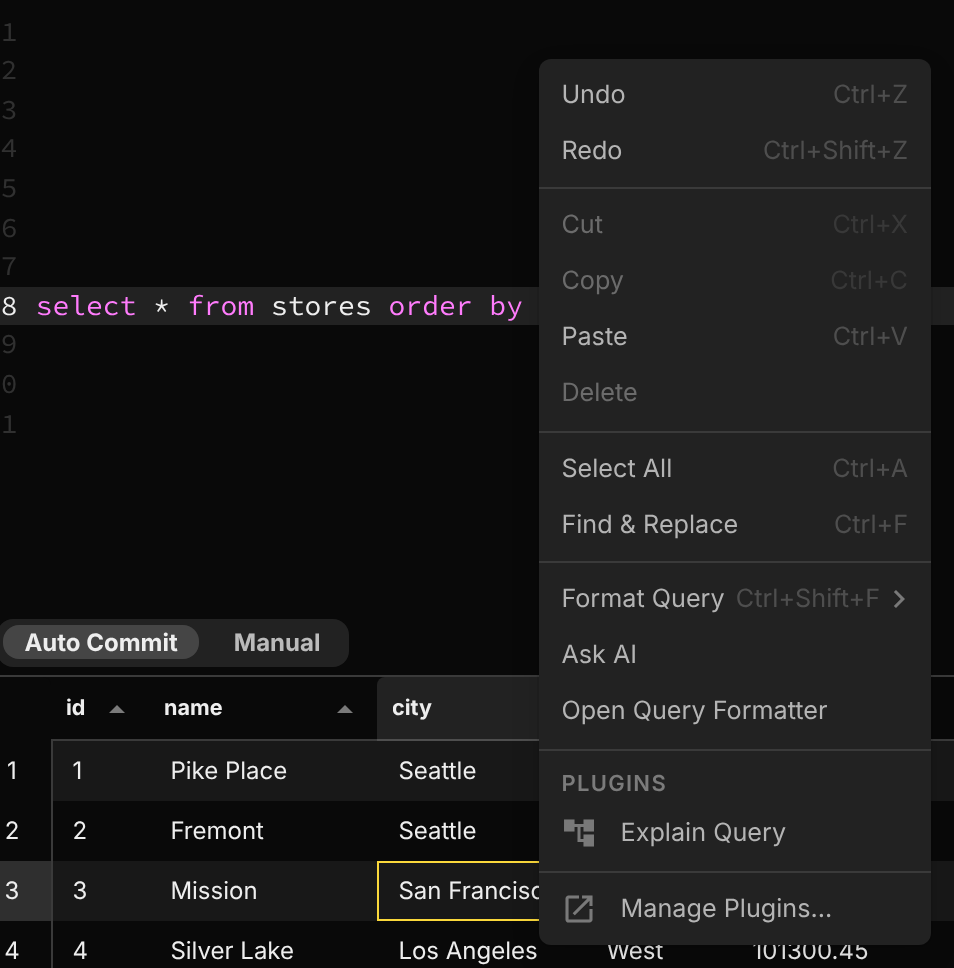
{
  "command": "explain-query",
  "name": "Explain Query",
  "view": "explain",
  "placement": "editor.query.context",
  "icon": "account_tree"
}
Query Editor Toolbar
editor.query.toolbar adds a button to the query editor toolbar, next to Run. The button shows the item's icon and its whole name, so keep the name short: names longer than 20 characters log a warning to the developer console.

{
  "command": "explain",
  "name": "Explain",
  "view": "explain",
  "placement": "editor.query.toolbar",
  "icon": "account_tree"
}
Query Results
The results grid below the query editor has a context menu on its cells, column headers, row headers and top left corner, plus a Visualize menu in the status bar.
Query Results Cell
results.cell.context adds an item to the context menu of a result cell.
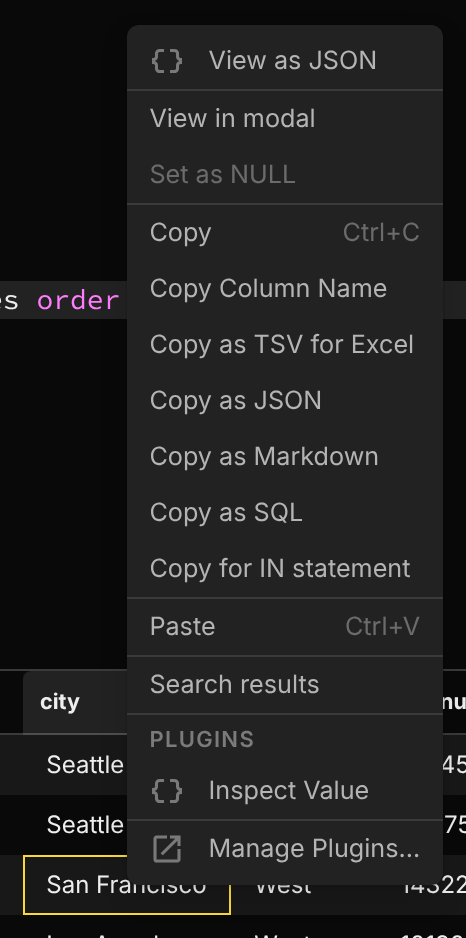
{
  "command": "inspect-value",
  "name": "Inspect Value",
  "view": "inspector",
  "placement": "results.cell.context",
  "icon": "data_object"
}
Query Results Column Header
results.columnHeader.context adds an item to the context menu of a result column header.
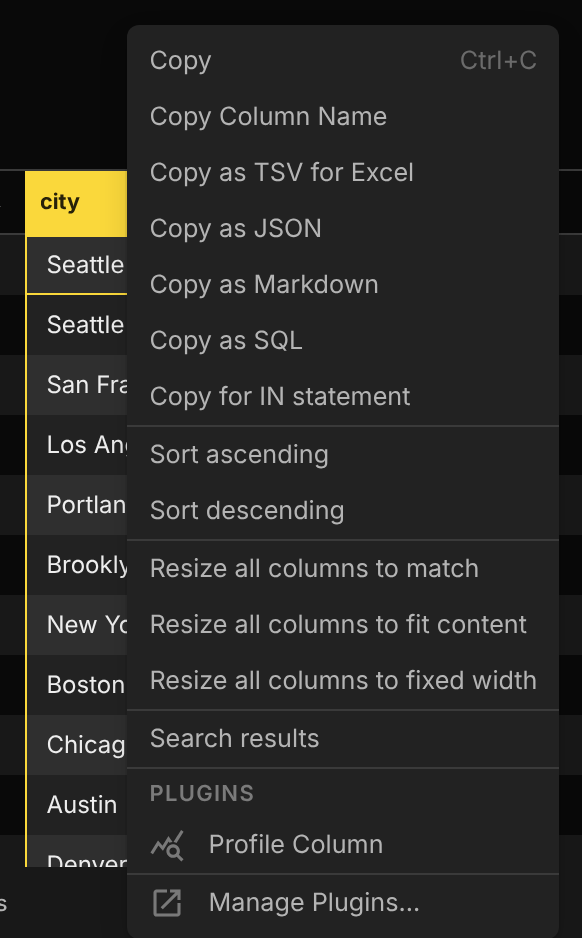
{
  "command": "profile-column",
  "name": "Profile Column",
  "view": "profiler",
  "placement": "results.columnHeader.context",
  "icon": "query_stats"
}
Query Results Row Header
results.rowHeader.context adds an item to the context menu of a result row number.
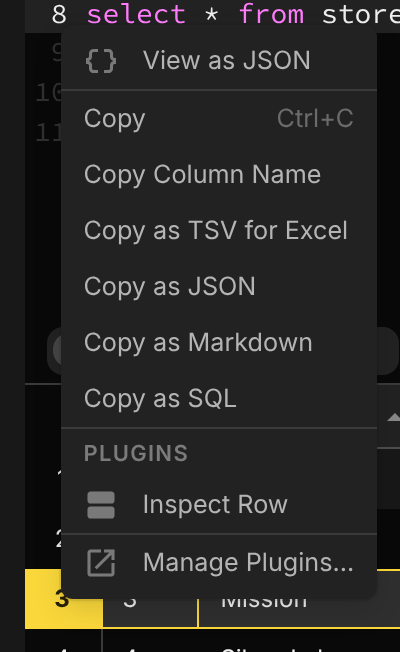
{
  "command": "inspect-row",
  "name": "Inspect Row",
  "view": "inspector",
  "placement": "results.rowHeader.context",
  "icon": "view_agenda"
}
Query Results Corner
results.corner.context adds an item to the context menu of the top left corner of the results grid, which acts on the whole result.
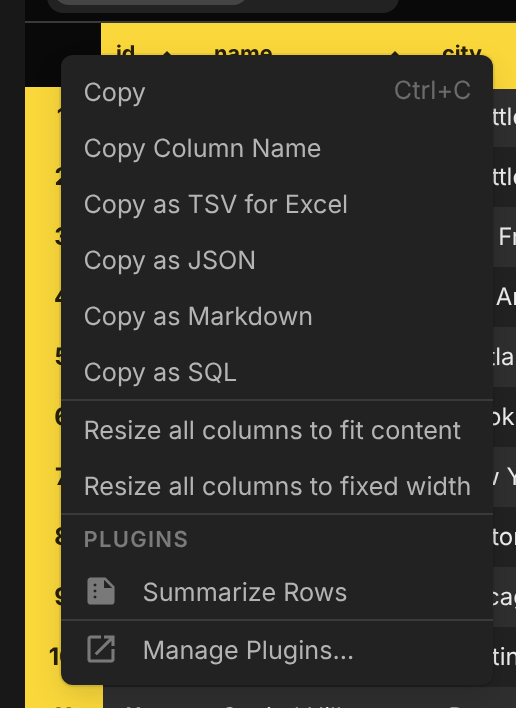
{
  "command": "summarize",
  "name": "Summarize Rows",
  "view": "summary",
  "placement": "results.corner.context",
  "icon": "summarize"
}
Query Results Visualize Menu
results.statusbar adds an item to the Visualize menu in the query results status bar. The view receives the selected cells, or the whole result when nothing is selected. Use enabledWhen to keep the item disabled until the result suits it. See Status bar params.
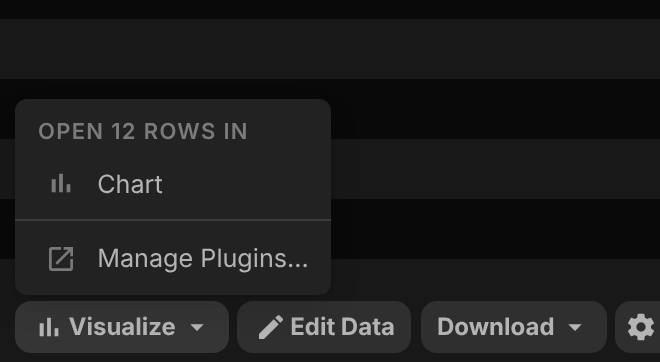
{
  "command": "chart",
  "name": "Chart",
  "view": "chart",
  "placement": "results.statusbar",
  "icon": "bar_chart"
}
Table View
The table view (opened with View Data) has the same grid menus as the query results, with their own placements, so a plugin can choose to appear in either or both.
Table View Cell
tableTable.cell.context adds an item to the context menu of a table cell.
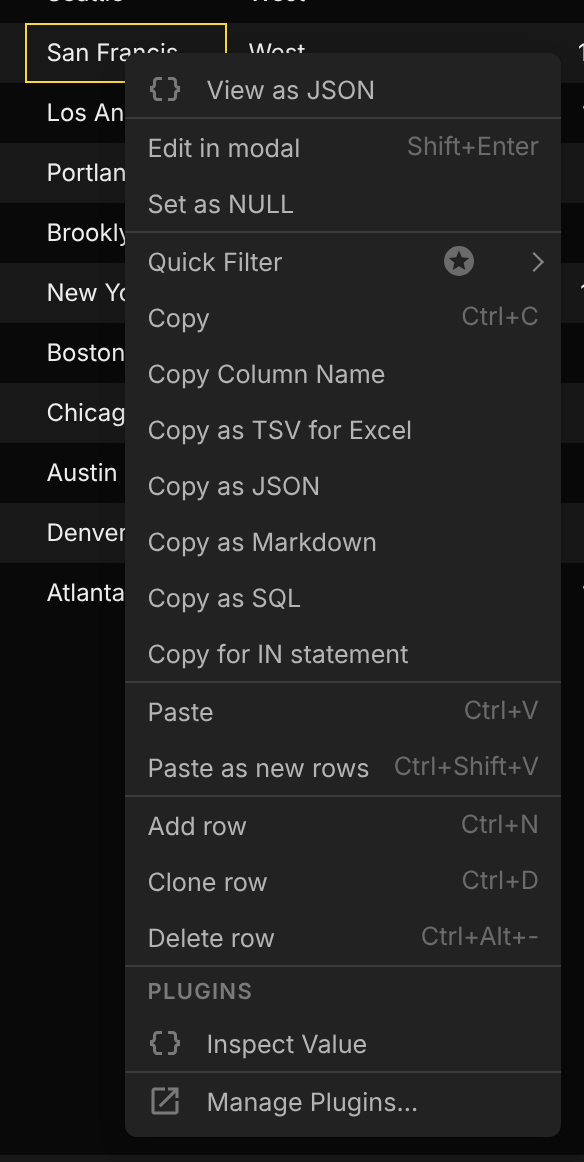
{
  "command": "inspect-value",
  "name": "Inspect Value",
  "view": "inspector",
  "placement": "tableTable.cell.context",
  "icon": "data_object"
}
Table View Column Header
tableTable.columnHeader.context adds an item to the context menu of a table column header.
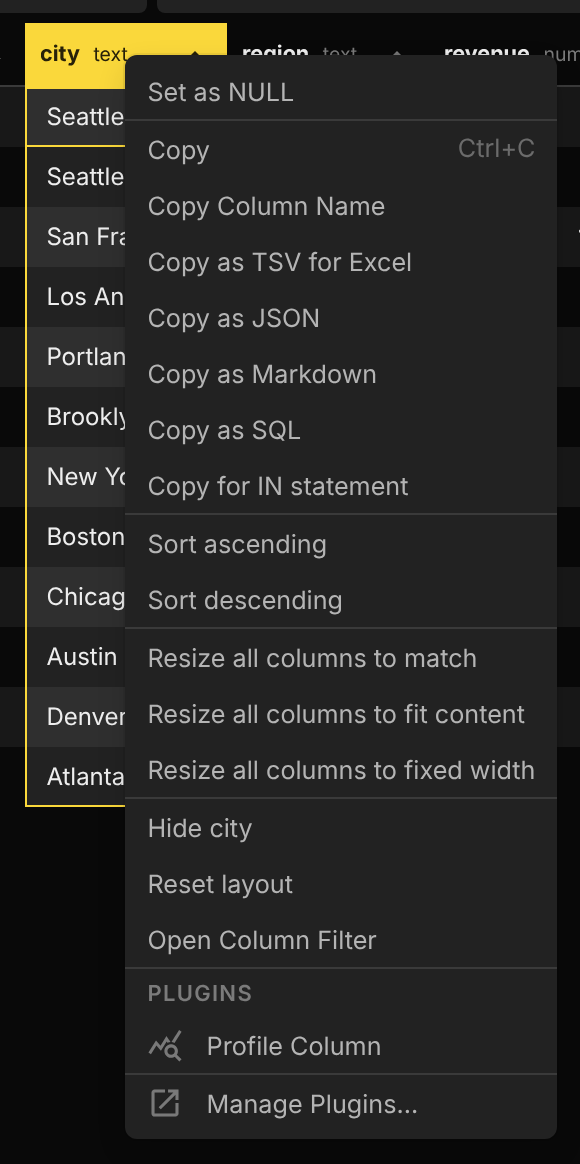
{
  "command": "profile-column",
  "name": "Profile Column",
  "view": "profiler",
  "placement": "tableTable.columnHeader.context",
  "icon": "query_stats"
}
Table View Row Header
tableTable.rowHeader.context adds an item to the context menu of a table row number.
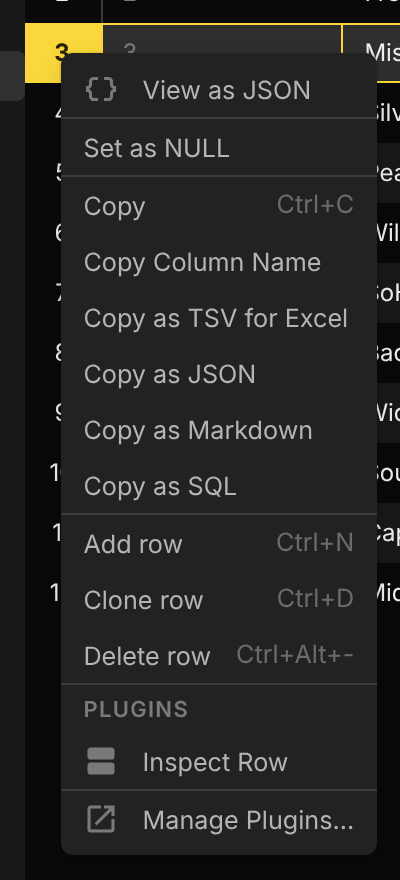
{
  "command": "inspect-row",
  "name": "Inspect Row",
  "view": "inspector",
  "placement": "tableTable.rowHeader.context",
  "icon": "view_agenda"
}
Table View Corner
tableTable.corner.context adds an item to the context menu of the top left corner of the table view.
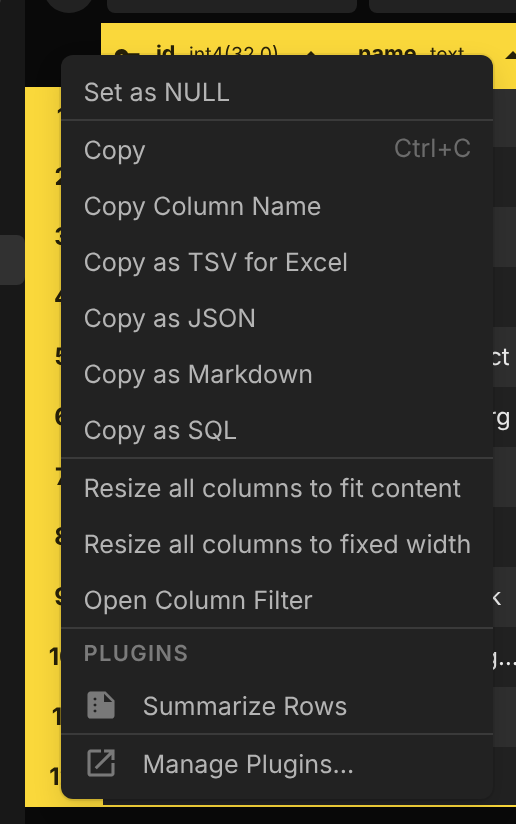
{
  "command": "summarize",
  "name": "Summarize Rows",
  "view": "summary",
  "placement": "tableTable.corner.context",
  "icon": "summarize"
}
Table View Visualize Menu
tableTable.statusbar adds an item to the Visualize menu in the table view status bar. With nothing selected, the view receives the table and its filters instead of rows. See Status bar params.
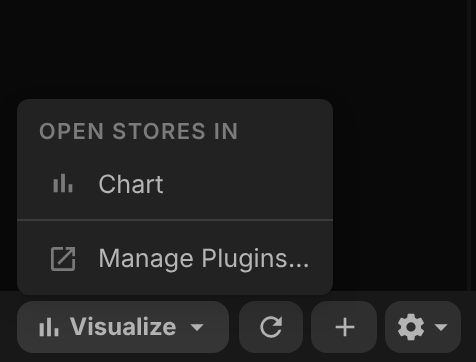
{
  "command": "chart",
  "name": "Chart",
  "view": "chart",
  "placement": "tableTable.statusbar",
  "icon": "bar_chart"
}
To show the same item in both Visualize menus, list both placements: "placement": ["results.statusbar", "tableTable.statusbar"].
Tabs
Query Tab Header
tab.query.header.context adds an item to the context menu of a query tab's header.
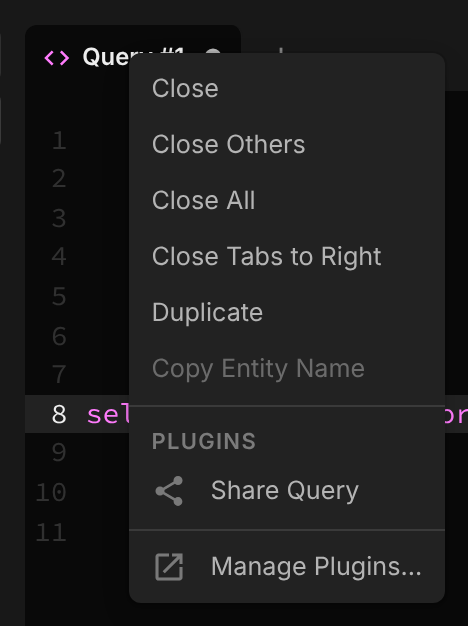
{
  "command": "share-query",
  "name": "Share Query",
  "view": "share",
  "placement": "tab.query.header.context",
  "icon": "share"
}
Table Tab Header
tab.table.header.context adds an item to the context menu of a table tab's header.
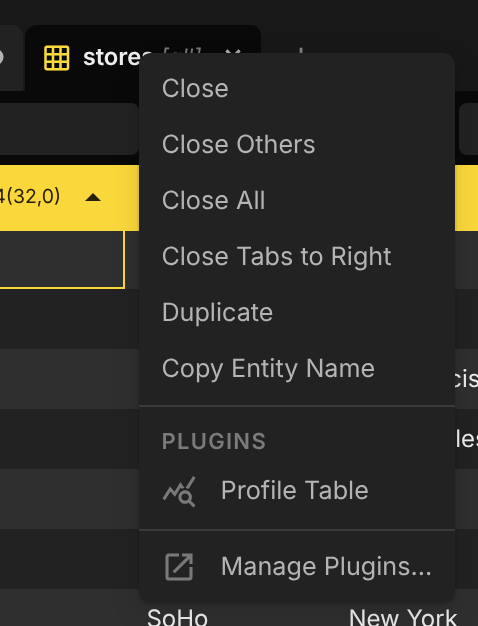
{
  "command": "profile-table",
  "name": "Profile Table",
  "view": "profiler",
  "placement": "tab.table.header.context",
  "icon": "query_stats"
}
Sidebar
The entity list in the sidebar has a context menu for each kind of entity. Schemas and routines only appear for databases that have them, such as PostgreSQL.
Sidebar Table
entity.table.context adds an item to the context menu of a table in the sidebar.
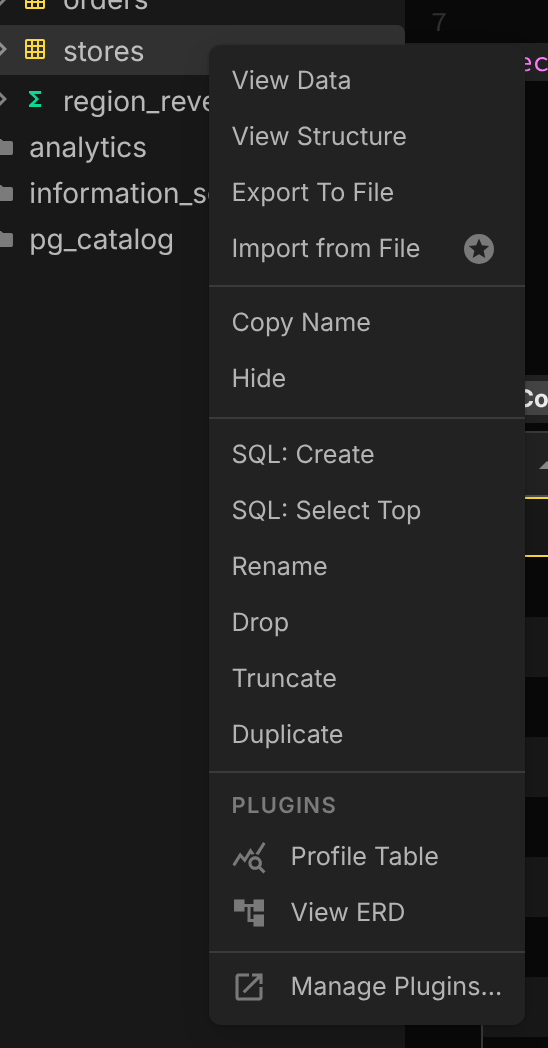
{
  "command": "profile-table",
  "name": "Profile Table",
  "view": "profiler",
  "placement": "entity.table.context",
  "icon": "query_stats"
}
Sidebar Schema
entity.schema.context adds an item to the context menu of a schema in the sidebar.
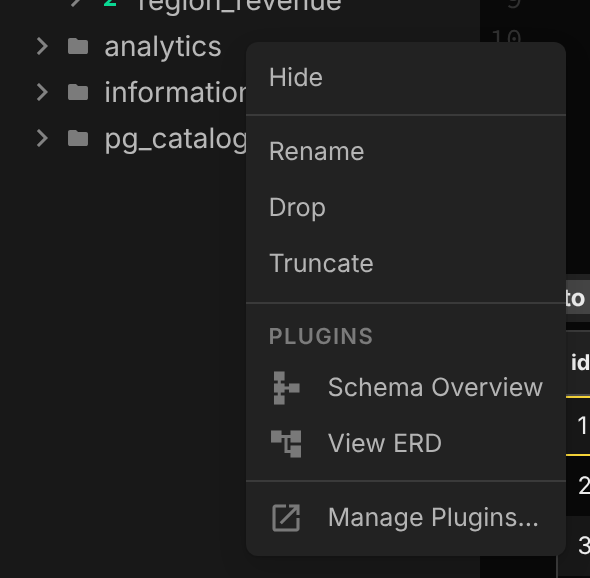
{
  "command": "schema-overview",
  "name": "Schema Overview",
  "view": "overview",
  "placement": "entity.schema.context",
  "icon": "schema"
}
Sidebar Routine
entity.routine.context adds an item to the context menu of a function or stored procedure in the sidebar.
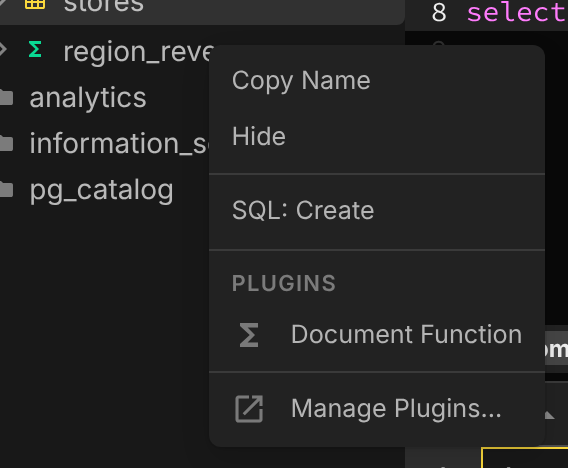
{
  "command": "document-function",
  "name": "Document Function",
  "view": "docs",
  "placement": "entity.routine.context",
  "icon": "functions"
}
Table Structure
Table Structure Actions Menu
structure.statusbar.menu adds an item to the actions menu (the gear button) in the status bar of the table structure view.
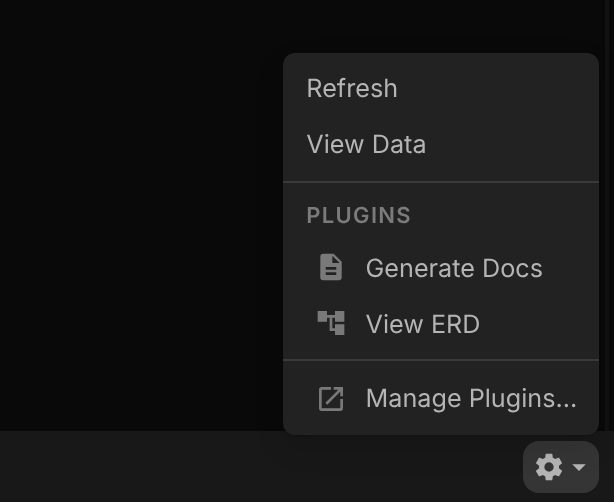
{
  "command": "generate-docs",
  "name": "Generate Docs",
  "view": "docs",
  "placement": "structure.statusbar.menu",
  "icon": "description"
}
Next Steps
- Plugin Views - The tab types a menu item can open
- Manifest Reference - Every manifest field, including
enabledWhen - SDK Reference - Read the view params with
getViewContext()