Plugin Manifest Reference
The manifest.json file defines your plugin's metadata, capabilities, settings, and permissions. This file must be located in the root of your plugin directory.
Manifest's structure
| Property | Type | Required | Description |
|---|---|---|---|
id |
string |
Yes | Unique identifier for your plugin. Use lowercase letters, numbers, and hyphens only. |
name |
string |
Yes | Display name shown to users in the Plugin Manager and UI. |
author |
string \| AuthorInfo |
Yes | Plugin author or organization name. |
description |
string |
Yes | Brief description of what your plugin does. |
version |
string |
Yes | Semantic version of your plugin (e.g., "1.0.0", "2.1.5"). |
icon |
string |
No | Material UI icon name. See Material Icons for available options. |
capabilities |
Capabilities |
Yes | Defines what views your plugin provides. |
pluginEntryDir |
string |
No | Path to your plugin's built files relative to the plugin root. Defaults to project root. |
manifestVersion |
1 \| 0 |
No | Version of the manifest format. Defaults to 0. NOTE: Manifest v0 is deprecated and will be removed in a future release |
minAppVersion |
string |
No | Minimum Beekeeper Studio version required. If not specified, all version of Beekeeper Studio are supported. |
settings |
unknown |
No | (Planned for future releases) Configuration options that can be set via config files. |
permissions |
unknown |
No | (Planned for future releases) List of permissions your plugin requires. |
AuthorInfo
| Property | Type | Required | Description |
|---|---|---|---|
name |
string |
Yes | Author or organization name. |
url |
string |
Yes | Author or organization URL. |
Capabilities
| Property | Type | Required | Description |
|---|---|---|---|
views |
View[] |
Yes | Array of view definitions for your plugin. |
View
| Property | Type | Required | Description |
|---|---|---|---|
id |
string |
Yes | Unique identifier for this view. |
name |
string |
Yes | Display name shown in tabs/sidebar. |
type |
ViewType |
Yes | Type of view. |
entry |
string |
Yes | Path to the HTML file relative to plugin root. |
ViewType
| Value | Description |
|---|---|
"shell-tab" |
Tab with your plugin's iframe at the top and a collapsible result table at the bottom. |
"base-tab" |
Full-tab interface. |
"primary-sidebar" |
(Planned for future releases) Primary sidebar panel. |
"secondary-sidebar" |
(Planned for future releases) Secondary sidebar panel. |
Basic Example
{
    "id": "my-database-plugin",
    "name": "Database Analyzer",
    "author": "Your Name",
    "description": "Analyzes database performance and provides optimization suggestions",
    "version": "1.0.0",
    "manifestVersion": 1,
    "minAppVersion": "5.4.0",
    "icon": "analytics",
    "capabilities": {
        "views": [
            {
                "id": "analyzer-tab",
                "name": "Analyzer",
                "type": "shell-tab",
                "entry": "index.html"
            }
        ],
        "menu": [
            {
                "command": "openAnalyzer",
                "name": "Open Analyzer",
                "view": "analyzer-tab",
                "placement": "menubar.tools"
            }
        ]
    }
}
Type Definitions
AuthorInfo
| Property | Type | Required | Description |
|---|---|---|---|
name |
string |
Yes | Author or organization name. |
url |
string |
Yes | Author or organization URL. |
Capabilities
| Property | Type | Required | Description |
|---|---|---|---|
views |
PluginView[] |
No | Array of view definitions for your plugin. |
menu |
PluginMenuItem[] |
No | Array of menu definitions for your plugin. |
PluginView
| Property | Type | Required | Description |
|---|---|---|---|
id |
string |
Yes | Unique identifier for this view. |
name |
string |
Yes | Display name shown in tabs/sidebar. |
type |
PluginViewType |
Yes | Type of view. |
entry |
string |
Yes | Path to the HTML file relative to plugin root. |
PluginViewType
| Value | Description |
|---|---|
"plain-tab" |
Tab with your plugin's iframe taking up the entire tab. |
"shell-tab" |
Tab with your plugin's iframe at the top and a collapsible result table at the bottom. |
"primary-sidebar" |
(Planned for future releases) Primary sidebar panel. |
"secondary-sidebar" |
(Planned for future releases) Secondary sidebar panel. |
PluginMenuItem
| Property | Type | Required | Description |
|---|---|---|---|
command |
string |
Yes | Command or id of the menu item. |
name |
string |
Yes | User-facing label shown in the UI for this menu item. |
view |
string |
No | ID of a view defined in capabilities.views; the host opens a new tab of that view. |
placement |
PluginMenuItemPlacement |
No | Location or locations in the app where this menu item should appear, expressed as a string or array of strings. |
icon |
string |
No | Material icon name shown next to the item. Falls back to the manifest's icon, then to extension. |
enabledWhen |
PluginMenuItemCondition |
No | Keep the item disabled until this condition holds. Menus that don't report the condition leave the item enabled. |
group |
string |
No | (Planned for future releases) Optional group identifier for sorting and grouping items within a placement. |
order |
number |
No | (Planned for future releases) Optional numeric order for fine-grained sorting within a group, with lower numbers shown first. |
Each command must be unique within a placement. To show the same command with a different label in two places, add two menu items with the same command and different placements.
Beekeeper Studio 6.2
The editor.query.toolbar, results.statusbar and tableTable.statusbar placements, and the icon and enabledWhen fields, need Beekeeper Studio 6.2 or later, as do items on the tab header placements (tab.query.header.context and tab.table.header.context). Earlier versions skip menu items whose placement they don't know, and ignore the two fields. Set "minAppVersion": "6.2.0" if your plugin depends on them.
PluginMenuItemPlacement
| Value | Description |
|---|---|
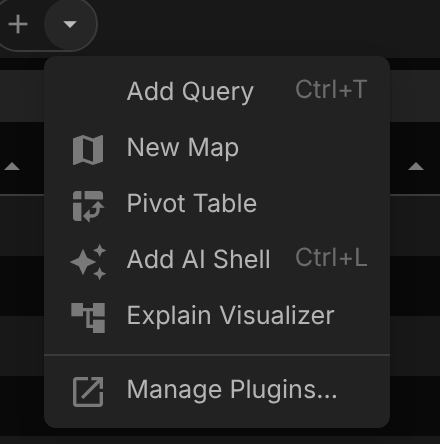
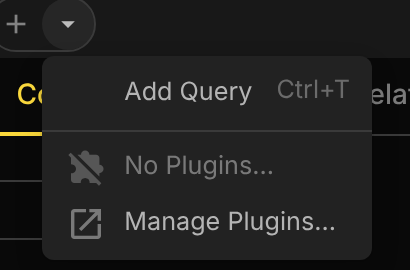
"newTabDropdown" |
Shown in the dropdown list when opening a new tab |
"menubar.tools" |
Shown in the tools menu |
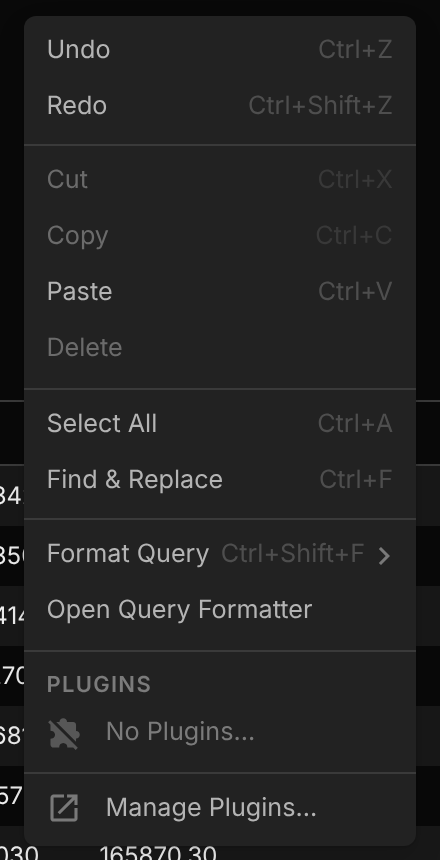
"editor.query.context" |
Context menu inside the query editor |
"editor.query.toolbar" |
Button in the query editor toolbar, next to Run |
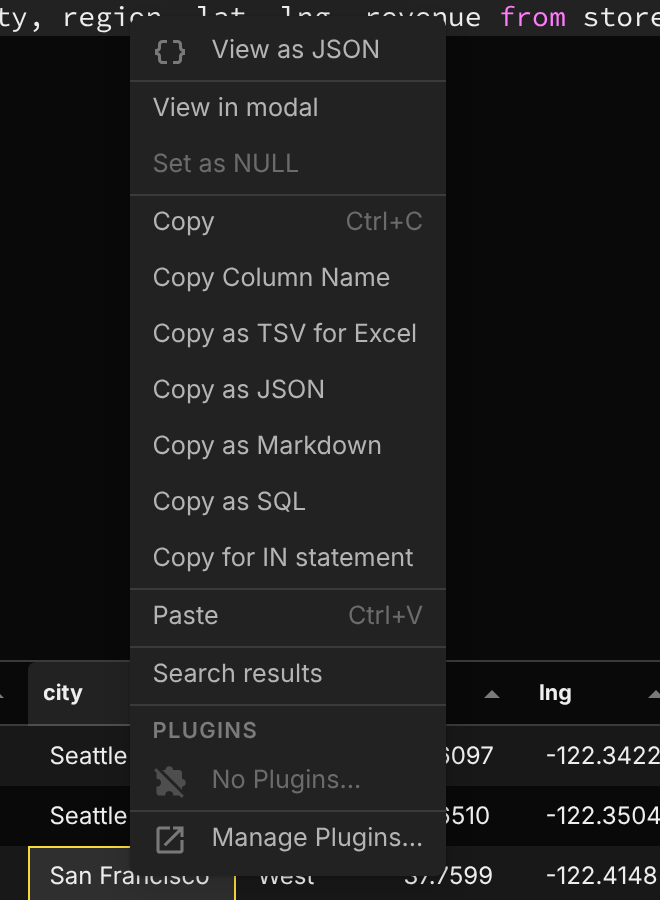
"results.cell.context" |
Context menu on a cell |
"results.columnHeader.context" |
Context menu on a column header |
"results.rowHeader.context" |
Context menu on a row header |
"results.corner.context" |
Context menu on the top left corner |
"results.statusbar" |
Visualize menu in the query results status bar |
"tableTable.cell.context" |
Context menu on a cell |
"tableTable.columnHeader.context" |
Context menu on a column header |
"tableTable.rowHeader.context" |
Context menu on a row header |
"tableTable.corner.context" |
Context menu on the top left corner |
"tableTable.statusbar" |
Visualize menu in the table view status bar |
"tab.query.header.context" |
Context menu on the query tab header |
"tab.table.header.context" |
Context menu on the table tab header |
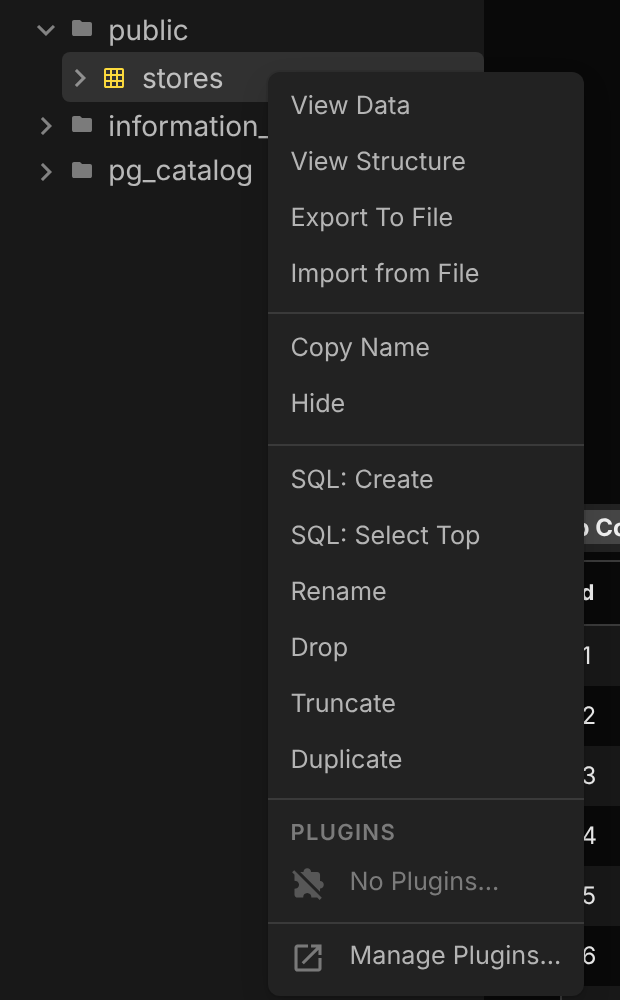
"entity.table.context" |
Context menu on a table |
"entity.schema.context" |
Context menu on a schema |
"entity.routine.context" |
Context menu on a routine |
"structure.statusbar.menu" |
Actions menu in the table structure view status bar |
In context menus, plugin items share one section labelled Plugins at the bottom of the menu. Plugins are sorted by name, each plugin's items keep their manifest order, and the section ends with Manage Plugins…. The Visualize menus and the new tab dropdown end with Manage Plugins… too.
Where placements appear
editor.query.toolbar items are buttons in the query editor toolbar, next to Run. Each button shows the item's icon and its whole name, so keep the name short: a name longer than 20 characters logs a warning to the developer console.

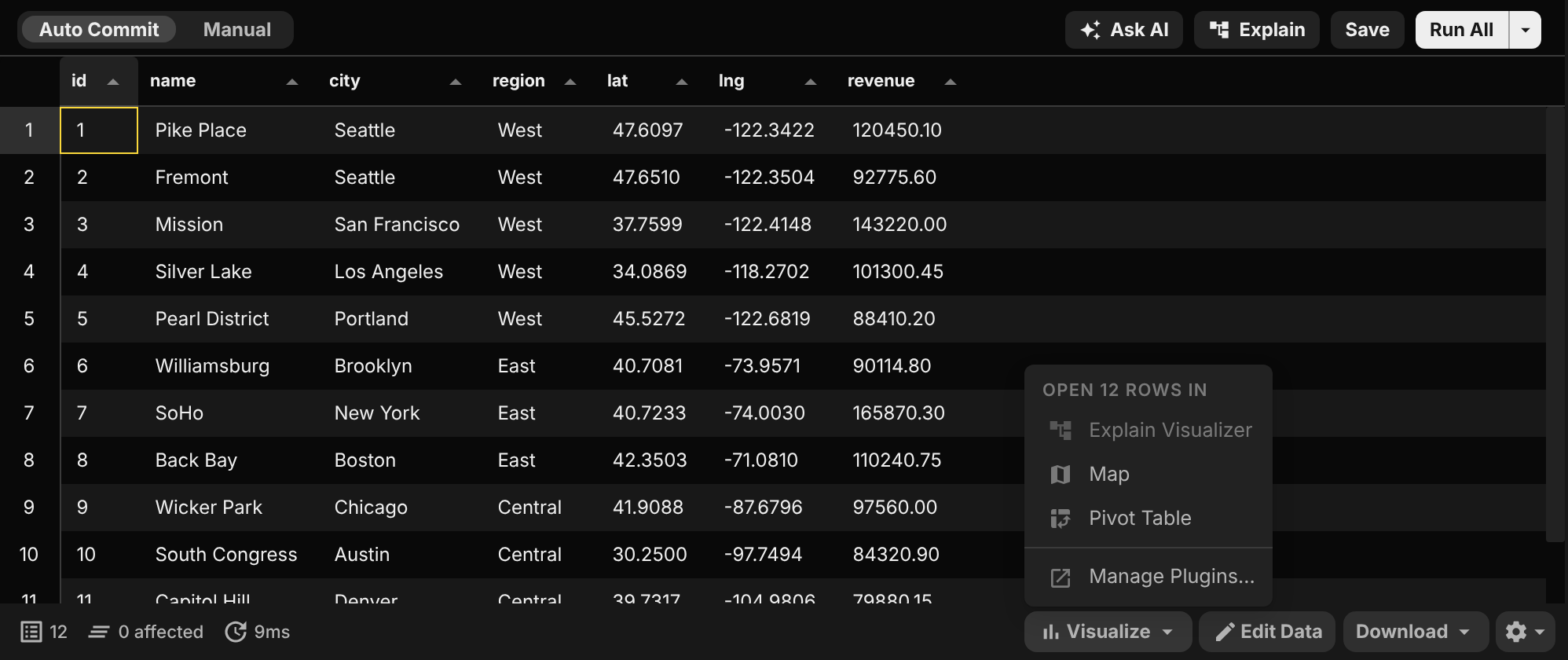
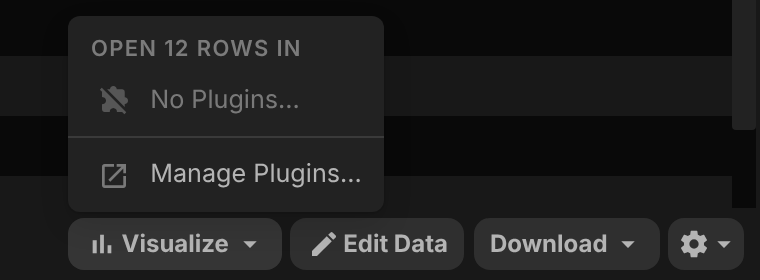
results.statusbar items are listed in the Visualize menu of the query results status bar. The button sits next to Edit Data, and is disabled while the result has no rows.


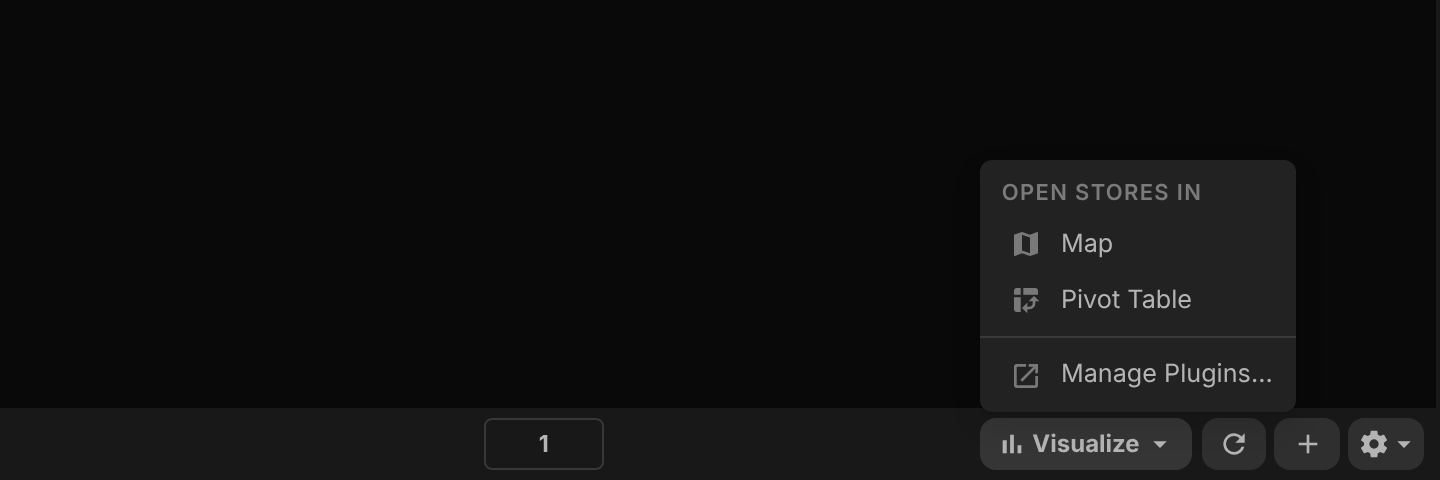
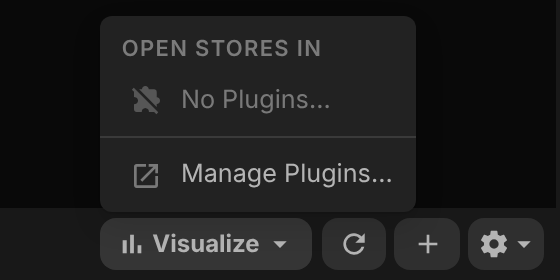
tableTable.statusbar items are listed in the Visualize menu of the table view.
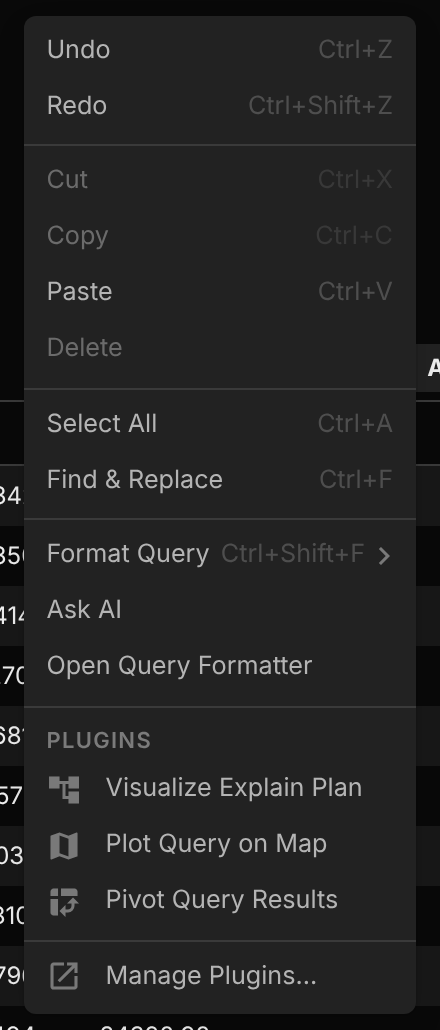
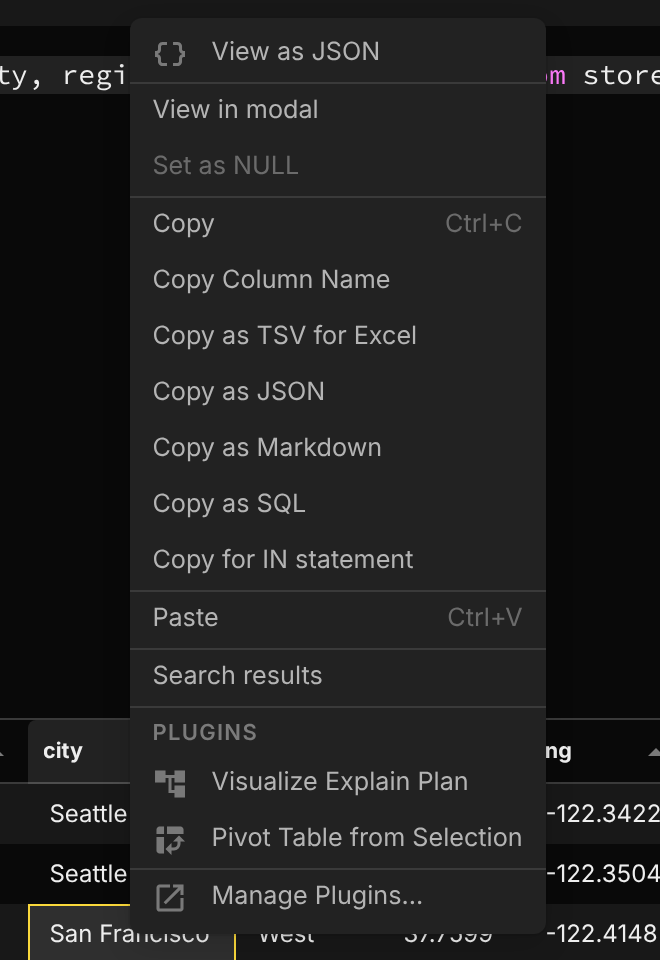
The *.context placements add items to the Plugins section of a context menu: here editor.query.context, results.cell.context and entity.table.context.
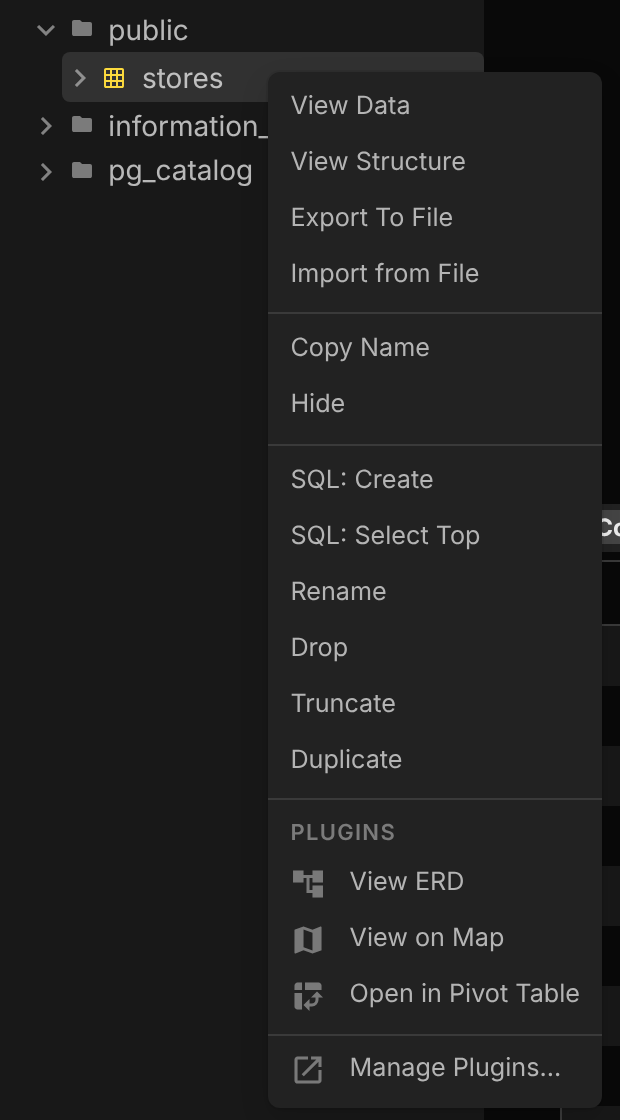
newTabDropdown items are listed in the dropdown next to the new tab button.
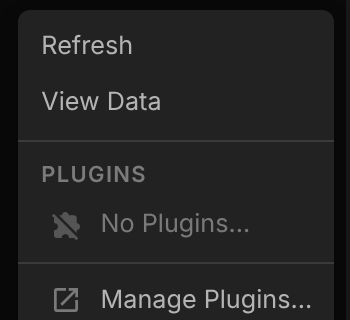
When no plugin uses a placement
Menus keep their Plugins section, with a disabled No Plugins… row above Manage Plugins…. This shows that plugin actions exist, and that no installed plugin adds one there. The same goes for both Visualize menus (the button always shows), the new tab dropdown and the actions menu of the table structure view. editor.query.toolbar is the exception: without a plugin, the toolbar has no plugin buttons.
| Placement | With a plugin | Without plugins |
|---|---|---|
editor.query.toolbar |
|
 |
results.statusbar |
|
 |
tableTable.statusbar |
|
 |
editor.query.context |
|
 |
results.cell.context |
|
 |
entity.table.context |
|
 |
newTabDropdown |
|
 |
PluginMenuItemCondition
| Value | Description |
|---|---|
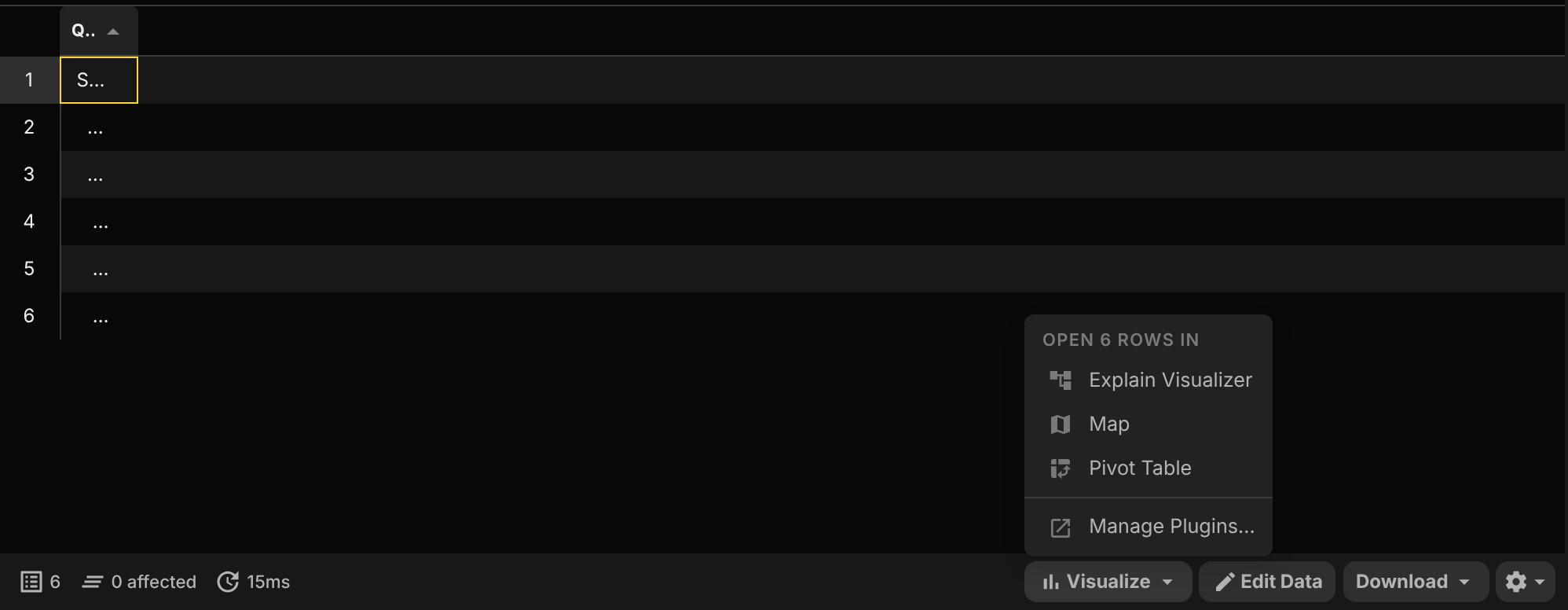
"explainResult" |
The result came from an EXPLAIN statement, or has the columns of a query plan (such as QUERY PLAN). Reported by results.statusbar; always false in tableTable.statusbar. |
An item waiting on explainResult is disabled in the Visualize menu until the result is a query plan:
Menu item params
When a menu item is picked, the new tab can read how it was opened with getViewContext(). params depends on the placement:
| Placement | params |
|---|---|
newTabDropdown, menubar.tools |
None |
editor.query.context, editor.query.toolbar |
EditorMenuParams |
results.*.context, tableTable.*.context |
CellMenuParams, ColumnMenuParams, RowMenuParams or CornerMenuParams |
results.statusbar, tableTable.statusbar |
StatusbarMenuParams |
tab.query.header.context, tab.table.header.context |
TabMenuParams |
entity.*.context, structure.statusbar.menu |
EntityMenuParams |
@beekeeperstudio/plugin 1.8.0 and later export these types. A command's placements decide its params, so narrow them by command:
import { getViewContext, type StatusbarMenuParams } from "@beekeeperstudio/plugin";

const context = await getViewContext();
if (context.command === "pivot-results") {
  const params = context.params as StatusbarMenuParams;
  // params.source is "selection", "result" or "table"
}
Status bar params
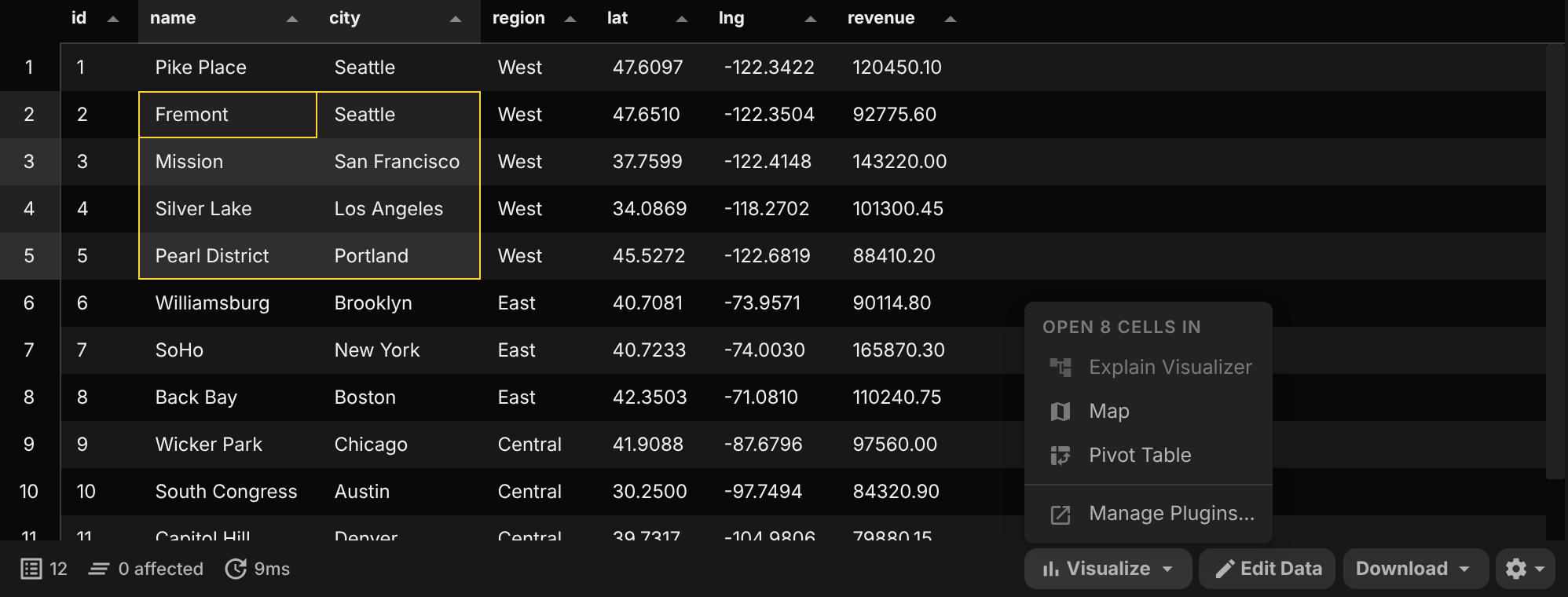
The Visualize menu sends what the user is looking at, and source says which:
"selection": the user selected more than one cell, or a row or column from its header.targetholds the selection, and the menu heading counts cells instead of rows."result": nothing is selected in a query result.targetholds every row of the result.truncatedis true when the result stopped at the row limit, andqueryis the statement that produced it, so you can run it again for more rows."table": nothing is selected in a table view. The grid only holds one page of the table, so no rows are sent. Read the table yourself fromentity, applyingwhere(the SQL condition for the filters in the table view), with a row limit that suits your plugin.
{
  "command": "pivot-results",
  "name": "Pivot Table",
  "view": "pivot-view",
  "placement": ["results.statusbar", "tableTable.statusbar"],
  "icon": "pivot_table_chart"
}
Legacy Format (Manifest V0)
The old tabTypes format looks like this:
{
    "manifestVersion": 0,
    "capabilities": {
        "views": {
            "tabTypes": [
                {
                    "id": "data-visualizer",
                    "name": "Data Visualizer",
                    "kind": "shell",
                    "entry": "tab.html"
                }
            ]
        }
    }
}
Please use the new capabilities format instead.