Creating Your First Plugin
Beta Feature
The plugin system is in beta (available in Beekeeper Studio 5.3+). We'd love your feedback!
Let's build a simple "Hello World" plugin! You'll create a new tab that shows "Hello World!" and learn how to interact with databases.
What You Need
- Basic HTML, CSS, and JavaScript knowledge
- Node.js and npm/yarn installed
- Beekeeper Studio installed
- The plugin system enabled
Quick Start (2 Options)
Option 1: Vite Project ⭐
Why Vite?
Vite provides Hot Module Replacement (HMR) for a nice development experience. When you make changes to your plugin, you'll see updates reflected in Beekeeper Studio without needing to manually reload the plugin or restart the application. This helps streamline the development process.
It's quite straightforward to configure your project using vite. With a simple vite.config.ts and our vite plugin, you get asset bundling and production builds.
-
Create a Vite project
npm create vite@latest hello-world-plugin
cd hello-world-plugin
yarn create vite hello-world-plugin cd hello-world-plugin -
Install the Beekeeper Studio Vite plugin
npm install @beekeeperstudio/vite-pluginyarn add @beekeeperstudio/vite-plugin -
Create the manifest file
Create
manifest.jsonto define your plugin:{ "id": "hello-world-plugin", "name": "Hello World Plugin", "author": { "name": "Your Name", "url": "https://yourwebsite.com" }, "description": "My first awesome plugin!", "version": "1.0.0", "icon": "extension", "manifestVersion": 1, "capabilities": { "views": [ { "id": "hello-world-view", "name": "Hello World", "type": "shell-tab", "entry": "dist/index.html" } ], "menu": [ { "command": "say-hello", "name": "New Hello World", "view": "hello-world-view", "placement": "newTabDropdown" } ] } } -
Create
vite.config.tsimport { defineConfig } from 'vite' import bks from '@beekeeperstudio/vite-plugin' export default defineConfig({ plugins: [bks()], }) -
Install the plugin
To install the plugin, you can simply move the project to the plugins directory
or create a symbolic link to it:ln -s $(pwd) ~/.config/beekeeper-studio/plugins/hello-world-pluginln -s $(pwd) "~/Library/Application Support/beekeeper-studio/plugins/hello-world-plugin"mklink /D "%APPDATA%\beekeeper-studio\plugins\hello-world-plugin" "%CD%"mklink /D "{beekeeper-studio-directory}\beekeeper-studio-data\plugins\hello-world-plugin" "%CD%"Why use a symbolic link?
This gives you control over your project location and keeps you free from accidentally uninstalling the plugin!
-
Run development server
npm run devyarn devNow you have hot reload! Changes to your code will automatically update in Beekeeper Studio.
Option 2: Build from Scratch
You don't actually need Vite or any build tools to create a plugin. The plugin
system is very straightforward. It only requires a plugin to have two files:
manifest.json- defines the plugin info (name, version, capabilities, etc.)index.html- your plugin's main page
To build from scratch:
-
Create Your Plugin Folder
First, create a folder anywhere you like for your plugin:
mkdir hello-world-plugin
cd hello-world-plugin
Then link it to Beekeeper Studio's plugins directory:
ln -s $(pwd) ~/.config/beekeeper-studio/plugins/hello-world-pluginln -s $(pwd) "~/Library/Application Support/beekeeper-studio/plugins/hello-world-plugin"mklink /D "%APPDATA%\beekeeper-studio\plugins\hello-world-plugin" "%CD%"mklink /D "{beekeeper-studio-directory}\beekeeper-studio-data\plugins\hello-world-plugin" "%CD%"Why use a symbolic link?
This gives you control over your project location and keeps you free from accidentally uninstalling the plugin!
-
Create the Manifest
Create
manifest.json- this tells Beekeeper Studio about your plugin:{ "id": "hello-world-plugin", "name": "Hello World Plugin", "author": { "name": "Your Name", "url": "https://yourwebsite.com" }, "description": "My first awesome plugin!", "version": "1.0.0", "icon": "extension", "manifestVersion": 1, "capabilities": { "views": [ { "id": "hello-world-view", "name": "Hello World", "type": "shell-tab", "entry": "index.html" } ], "menu": [ { "command": "say-hello", "name": "New Hello World", "view": "hello-world-view", "placement": "newTabDropdown" } ] } }Difference from Vite
Unlike the Vite version, we don't specify an
entryfield, so you need to create theindex.htmlfile in the project root. -
Create the Interface
Create
index.html- your plugin's main page:<!DOCTYPE html> <html lang="en"> <head> <meta charset="UTF-8"> <meta name="viewport" content="width=device-width, initial-scale=1.0"> <title>Hello World Plugin</title> <style> * { box-sizing: border-box; } body { font-family: system-ui, -apple-system, sans-serif; margin: 0; padding: 2rem; background-color: #f8f9fa; color: #333; } .container { max-width: 600px; margin: 0 auto; text-align: center; } h1 { color: #2d3748; margin-bottom: 1rem; } p { color: #4a5568; margin-bottom: 1.5rem; } button { background-color: #3182ce; color: white; border: none; padding: 0.75rem 1.5rem; border-radius: 0.5rem; cursor: pointer; font-size: 1rem; font-weight: 500; } button:hover { background-color: #2c5aa0; } .tables { margin-top: 1rem; padding: 1rem; background-color: #e6fffa; border-radius: 0.5rem; display: none; } .tables.show { display: block; } </style> </head> <body> <div class="container"> <h1>🎉 Your plugin works!</h1> <p>Edit this HTML and reload to see changes.</p> </div> </body> </html>Now, your project structure should look like this:
hello-world-plugin/
├── manifest.json
└── index.html
Test Your Plugin
For Vite Users
If you're using Vite, make sure your dev server is running first!
- Open Beekeeper Studio
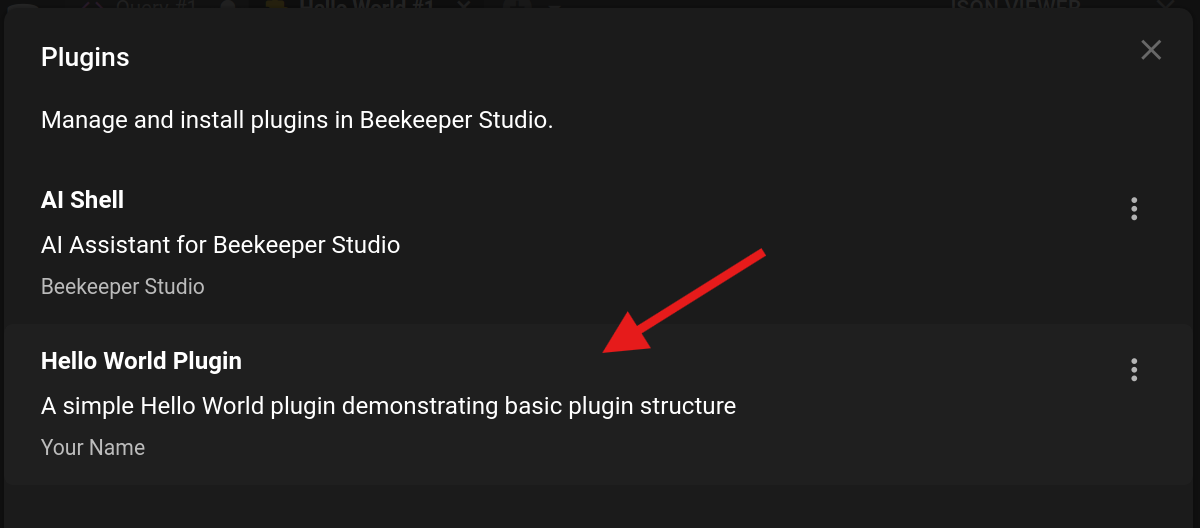
- Go to Tools → Manage Plugins
-
Look for Hello World Plugin - if it's there, you're golden! ✨
-
Connect to any database
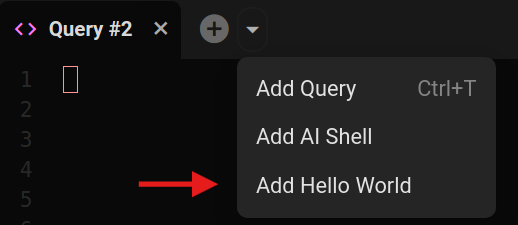
- Click the dropdown arrow next to the + button
- Select Hello World from the menu
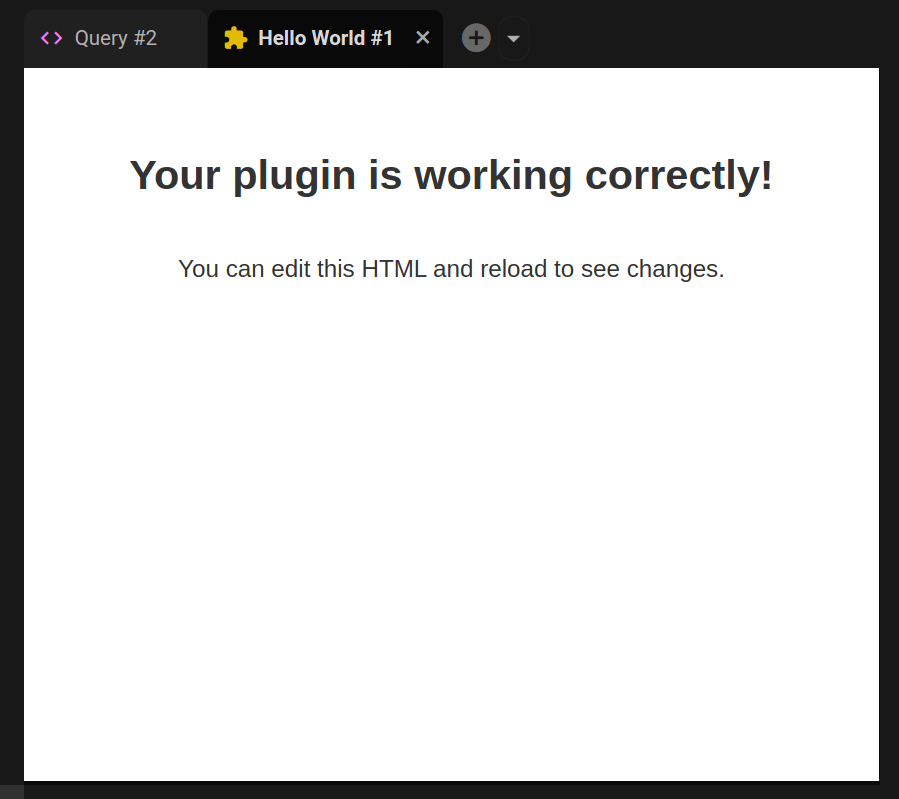
- Boom! Your plugin opens in a new tab 🎯
Reading Database
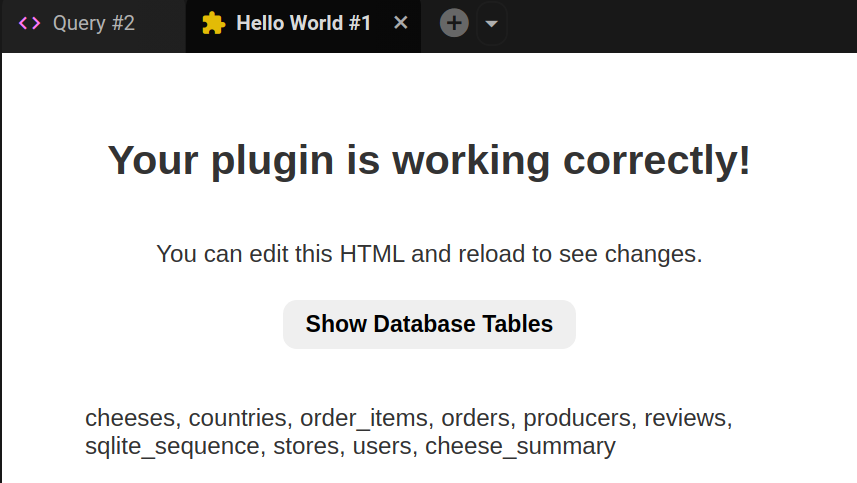
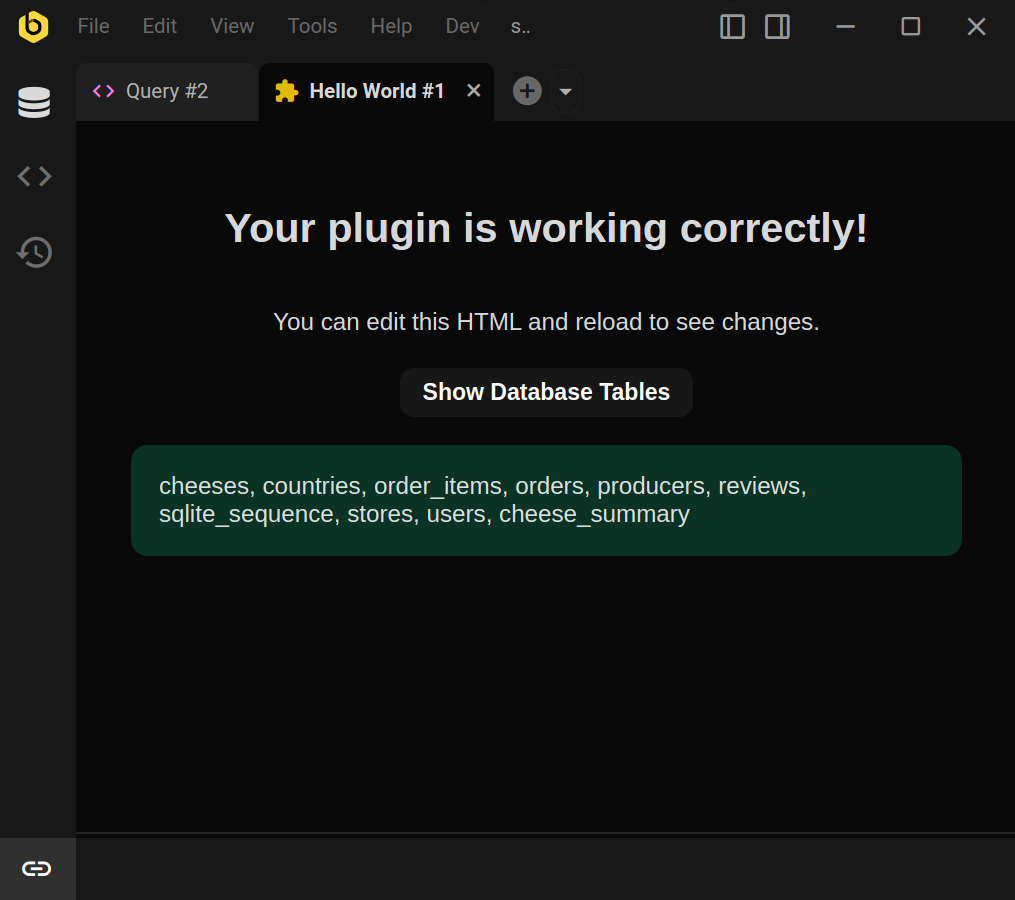
This section will demonstrate how to get some data from the app. By doing that, we will call an API that returns a list of tables.
First, let's install @beekeeperstudio/plugin package:
npm install @beekeeperstudio/plugin
yarn add @beekeeperstudio/plugin
Add this to your project (If you didn't use Vite, add this to a new file called main.js):
// Enables proper keyboard and mouse event handling
import "@beekeeperstudio/plugin/dist/eventForwarder.js";
import { getTables } from "@beekeeperstudio/plugin/";

// Show database tables
async function showTables() {
    try {
        const tables = await getTables();
        const tablesDiv = document.querySelector(".tables");
        tablesDiv.innerHTML = `<strong>Tables:</strong> ${tables.map(t => t.name).join(", ")}`;
        tablesDiv.classList.add("show");
    } catch (error) {
        console.error("Failed to get tables:", error);
    }
}

document.addEventListener("DOMContentLoaded", () => {
    document.querySelector("#show-tables-btn").addEventListener("click", showTables);
});
Add a button and the code reference to your html:
...
<body>
    <div class="container">
        <h1>🎉 Your plugin works!</h1>
        <p>Edit this HTML and reload to see changes.</p>
+        <button id="show-tables-btn">Show Database Tables</button>
+        <div class="tables"></div>
+        <script type="module" src="main.js"></script>
    </div>
</body>
...
Theme Sync
Make your plugin match Beekeeper Studio's theme:
Add a new <style> tag to your html:
<!DOCTYPE html>
<html lang="en">
<head>
    <meta charset="UTF-8">
    <meta name="viewport" content="width=device-width, initial-scale=1.0">
    <title>Hello World Plugin</title>
+   <style id="app-theme"></style>
    <style>
Update your javascript to use the app theme:
// Enables proper keyboard and mouse event handling
import "@beekeeperstudio/plugin/dist/eventForwarder.js";
import { getTables } from "@beekeeperstudio/plugin/dist/index.js";
+ import { addNotificationListener, getAppInfo } from "@beekeeperstudio/plugin";

+ function applyTheme(theme) {
+      document.querySelector("#app-theme")!.textContent =
+        `:root { ${app.theme.cssString} }`;
+ }

+ // Initialize theme
+ getAppInfo().then((app) => applyTheme(app.theme));

+ // Sync with app theme
+ addNotificationListener("themeChanged", (theme) => applyTheme(theme));

// Show database tables
async function showTables() {
Update your CSS to use theme variables:
-    background-color: #f8f9fa;
+    background-color: var(--query-editor-bg);
-    color: #333;
+    color: var(--text-dark);
Final Result
Your complete index.html:
<!DOCTYPE html>
<html lang="en">
<head>
    <meta charset="UTF-8">
    <meta name="viewport" content="width=device-width, initial-scale=1.0">
    <title>Hello World Plugin</title>
    <style>
        * { box-sizing: border-box; }
        body {
            font-family: system-ui, -apple-system, sans-serif;
            margin: 0;
            padding: 2rem;
            background-color: var(--query-editor-bg);
            color: var(--text-dark);
        }
        .container {
            max-width: 600px;
            margin: 0 auto;
            text-align: center;
        }
        h1 {
            color: #2d3748;
            margin-bottom: 1rem;
        }
        p {
            color: #4a5568;
            margin-bottom: 1.5rem;
        }
        button {
            background: var(--theme-base);
            color: white;
            border: none;
            padding: 0.75rem 1.5rem;
            border-radius: 0.5rem;
            cursor: pointer;
            font-size: 1rem;
            font-weight: 500;
        }
        button:hover { opacity: 0.9; }
        .tables {
            margin-top: 1rem;
            padding: 1rem;
            background: var(--brand-success-light);
            border-radius: 0.5rem;
            display: none;
        }
        .tables.show { display: block; }
    </style>
</head>
<body>
    <div class="container">
        <h1>🎉 Your plugin works!</h1>
        <p>Edit this HTML and reload to see changes.</p>

        <button id="show-tables-btn">Show Database Tables</button>
        <div class="tables"></div>

        <script type="module" src="main.js"></script>
    </div>
</body>
</html>
Your complete main.js:
// Enables proper keyboard and mouse event handling
import "@beekeeperstudio/plugin/dist/eventForwarder.js";
import { getTables, addNotificationListener, getAppInfo } from "@beekeeperstudio/plugin";

function applyTheme(theme) {
    document.querySelector("#app-theme").textContent =
        `:root { ${app.theme.cssString} }`;
}

// Initialize theme
getAppInfo().then((app) => applyTheme(app.theme));

// Sync with app theme
addNotificationListener("themeChanged", (theme) => applyTheme(theme));

// Show database tables
async function showTables() {
    try {
        const tables = await getTables();
        const tablesDiv = document.querySelector(".tables");
        tablesDiv.innerHTML = `<strong>Tables:</strong> ${tables.map(t => t.name).join(", ")}`;
        tablesDiv.classList.add("show");
    } catch (error) {
        console.error("Failed to get tables:", error);
    }
}

// Initialize
document.addEventListener("DOMContentLoaded", () => {
    document.querySelector("#show-tables-btn").addEventListener("click", showTables);
});
What's Next? 🚀
- Plugin API Reference - Explore all available functions
- Publishing Plugins - Share your creation with the world!