Amazon RDS
Connecting to Amazon RDS requires you to set up an IAM user and ensure your security group allows traffic from your IP address.
IAM Configuration in Amazon
To configure IAM DB access, ensure the DB in AWS is configured to allow IAM authentication. This can be done by modifying the DB instance and enabling IAM DB authentication.
You will then need to create an IAM user and attach the AmazonRDSFullAccess policy to the user. This policy allows the user to connect to the RDS instance.
You can also use a similar policy to the below:
{
    "Version": "2012-10-17",
    "Statement": [
        {
            "Effect": "Allow",
            "Action": [
                "rds-db:connect"
            ],
            "Resource": [
                "arn:aws:rds:eu-north-1:USERID:db:DB_NAME/USERNAME"
            ]
        }
    ]
}
Connecting to Amazon RDS
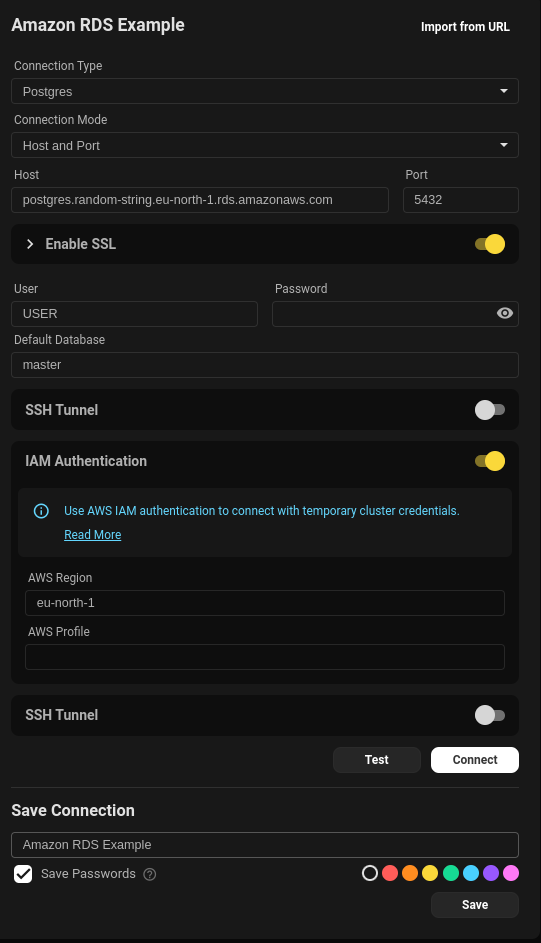
Below is an example config in Beekeeper Studio once IAM permissions are setup, you will need the hostname, port, username, AWS Region and if you have multiple Amazon profiles you can specify the profile you want to use.
Things to note
- If you use security groups with time-limited IP allowlisting, idle connections may be dropped and fail to reconnect after the allowlist expires. See Troubleshooting: Connections drop after IP allowlist expires for how to adjust idle timeouts.
- SSL is required on most RDS instances, so ensure this is checked.
- You will need a credentials file configured and would need to follow the guide linked to set this up:
AWS CLI Configuration
Some useful links
1. AWS CLI Authentication (PostgreSQL, MySQL)
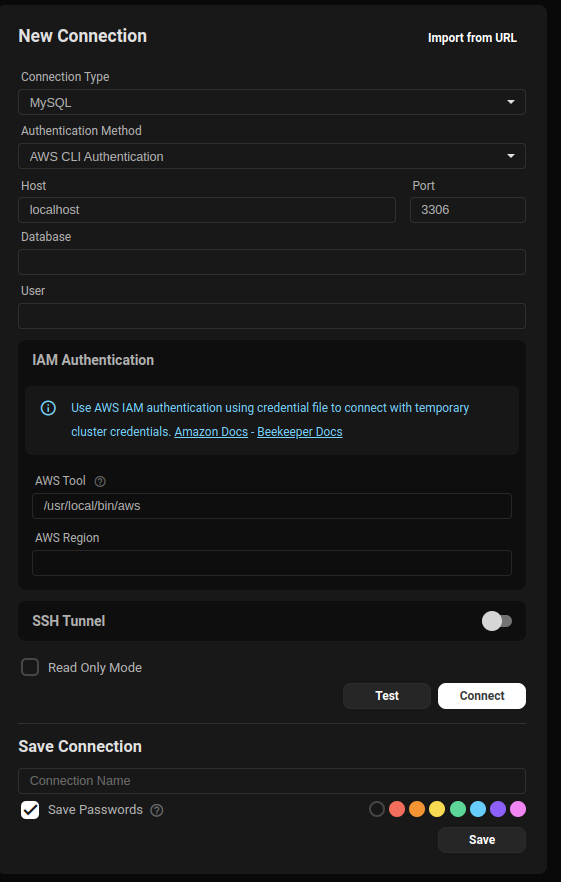
Uses your local AWS CLI session to retrieve an access token.
AWS CLI v2 recommended
Profile auto-discovery uses aws configure list-profiles, which requires AWS CLI v2 (or v1 ≥ 1.16.146). Older v1 builds — common on Debian/Ubuntu's distribution package (apt install awscli) — don't support list-profiles, so the profile dropdown stays empty and an "Unable to list AWS profiles" warning appears. You can still type a profile name manually. Install AWS CLI v2.
The path to the aws binary is detected automatically — common install locations are checked, including Homebrew. If it isn't found, click Find to retry or pick the binary manually with the file picker.
Steps:
1. Make sure AWS Credentials are set
2. In the application, select AWS CLI Authentication.
3. Provide:
- Host
- Database
- Username
- AWS Region
Postgres requires a database to be provided otherwise it defaults to username
✅ The application will use your active CLI session to authenticate securely.